AutoSurvey
Built · in final review Not yet in the released package. Every screen on this page is a real screenshot of the working build in a test org, with data from a fictional organization.

Multilingual surveys · 34 languages · in final review

Write the survey once. Offer it in 34 languages. Read every answer in yours.

AutoSurvey translates the questions, the choices, the consent text and the invitation emails with the AI provider your org already uses. A person on your team reviews each text before it reaches a respondent. The release freezes the texts, so a respondent always sees the reviewed version. A respondent switches language mid-survey and keeps every answer. A free-text answer written in Spanish, Vietnamese or Polish comes back to your team in English.

Built on AutoSurvey's published-release model, inside your Salesforce org. The admin screens stay in English. Right-to-left languages are not included.

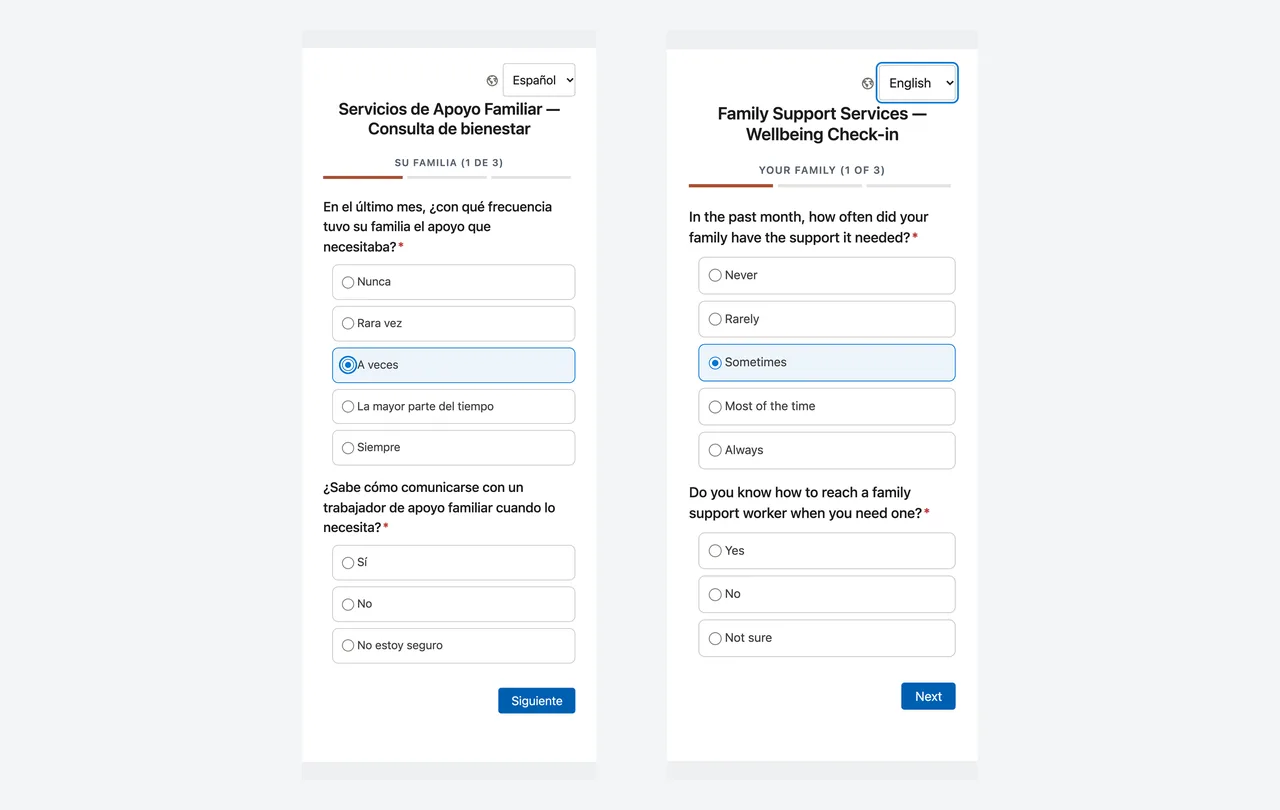
Two phone screens of the same survey question side by side. The left phone shows the question in Spanish with the choice A veces selected. The right phone shows the same question in English with the choice Sometimes selected. Each phone has a globe icon and a language list at the top.

The same screen before and after the respondent switched from Spanish to English. The selected choice stayed selected.

How it works

Add a language. Review the texts. Release. That is the whole workflow.

1

Add a language

Pick a language in the Languages card. AutoSurvey sends every respondent-facing text to your AI provider and stores the result as a translation. About ten seconds per language for a short survey.

2

A person reviews

Each text shows its origin and its review mark. Edit a text in place, mark it reviewed, or fix many at once in a CSV file or the survey's Google Sheet. Legal text always asks for a second look.

3

Release

The release dialog lists each language with its counts and asks a named person to confirm the legal text. The release freezes the texts. Later edits wait for the next release.

4

Respondents answer

The link, the invitation, the browser or the default picks the language. A globe control lets the respondent change it. The language is recorded on the response.

Why it matters

One survey to maintain. One set of results. Translations you can stand behind.

No copies of the form

Separate English and Spanish forms drift apart and split the results. Here there is one survey, one release and one set of responses. A choice stores the same value in every language, so a score never changes with the label.

AI drafts, people decide

The AI gives you a full draft in seconds. Your team reviews it, keeps brand words as they are, and confirms the legal text by name. The release records who confirmed and when.

Read every free-text answer

Turn on text-answer translation and each free-text answer comes back in the languages your team reads. The original stays on the record, one click away. Reports stay in the source language.

The screens

What it looks like in the build today

Real screenshots from a test org on 2026-10-10. The survey, the organization and the answer are fictional. The Spanish and French texts are the AI's own output, before any edit by a person.

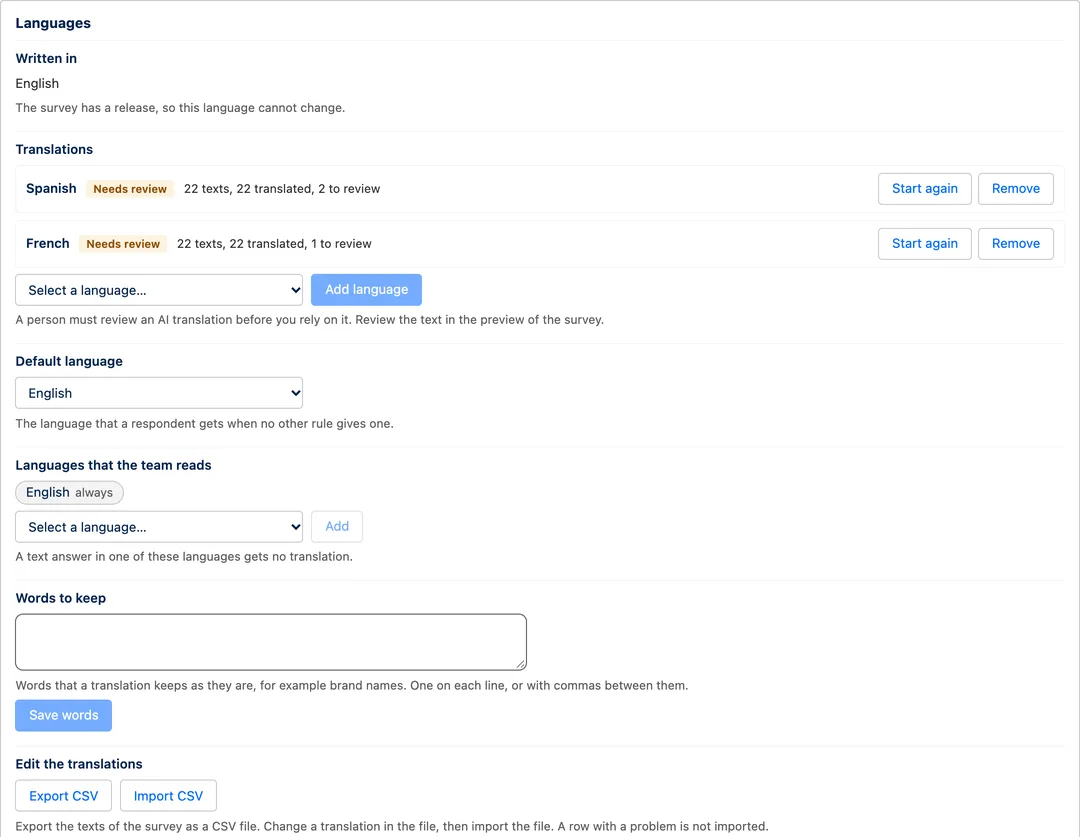
The Languages card of a survey. Written in: English. Translations: Spanish, Needs review, 22 texts, 22 translated, 2 to review. French, Needs review, 22 texts, 22 translated, 1 to review. A list to add a language. A Default language list set to English. Languages that the team reads: English. A Words to keep box. Export CSV and Import CSV buttons.

01 · The Languages card

Add a language from a list of 34

Pick a language and click Add. The card shows each language with its status and its counts. The default language, the words to keep, and the languages that your team reads live on the same card. Export the texts as CSV, correct them, and import the file.

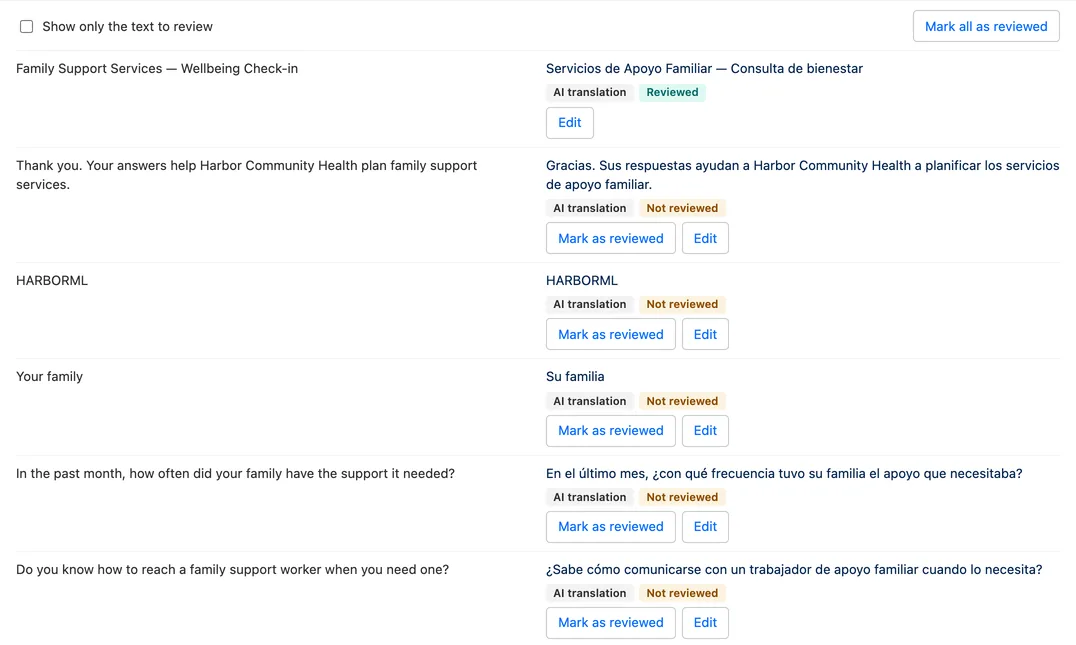
The translation review panel. The left column shows the English source text of each row. The right column shows the Spanish translation with two badges, AI translation and Not reviewed, and the buttons Mark as reviewed and Edit. The first row, the survey title, is marked Reviewed.

02 · The review panel

Source on the left, translation on the right, one mark per text

Each text carries its origin, such as AI translation or Changed by a person, and its review mark. Mark one text, or mark all. Edit a text in place. A filter shows only the texts that still need a look. If the source text changes later, the mark changes to Source text changed.

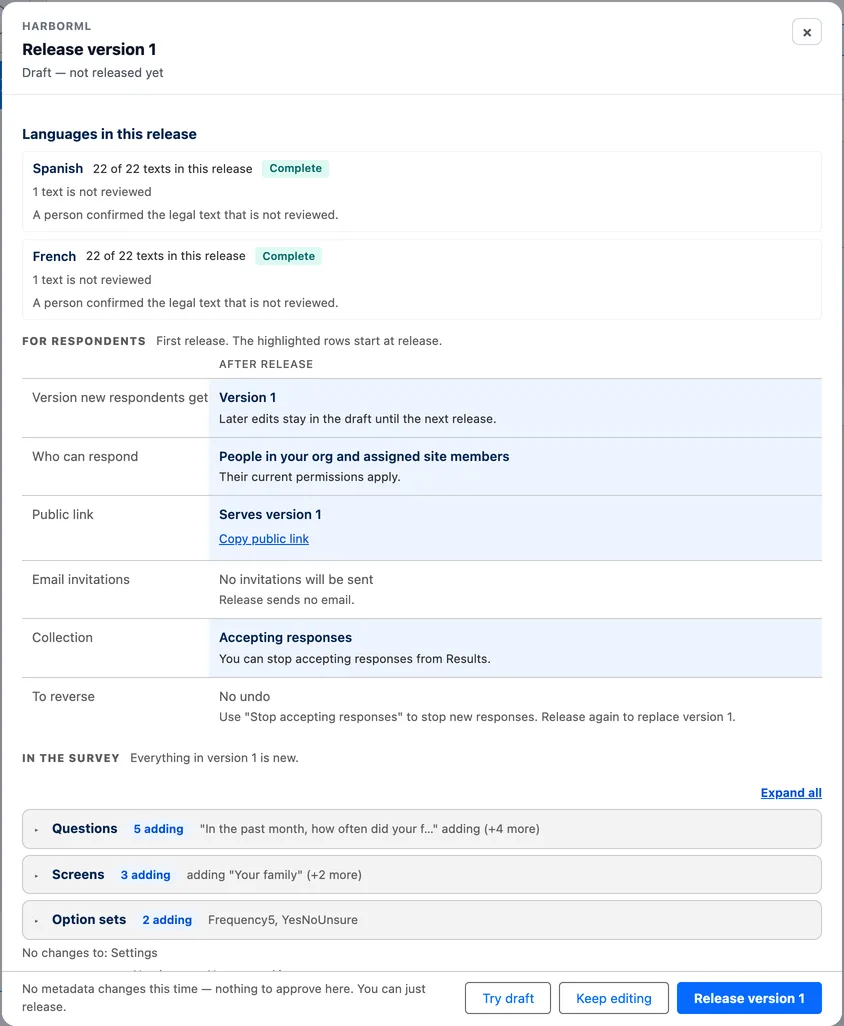
The Release version 1 dialog. A section titled Languages in this release lists Spanish, 22 of 22 texts, Complete, and French, 22 of 22 texts, Complete. Under each: 1 text is not reviewed, and A person confirmed the legal text that is not reviewed. Below, the standard release table and the button Release version 1.

03 · The release dialog

The release names its languages and freezes their texts

The dialog shows how many texts each language has and how many are not reviewed. The legal text, such as the consent sentence, must be reviewed or confirmed by a named person before the release goes out. A language that is not complete is still permitted. A respondent then sees the source text for the missing lines.

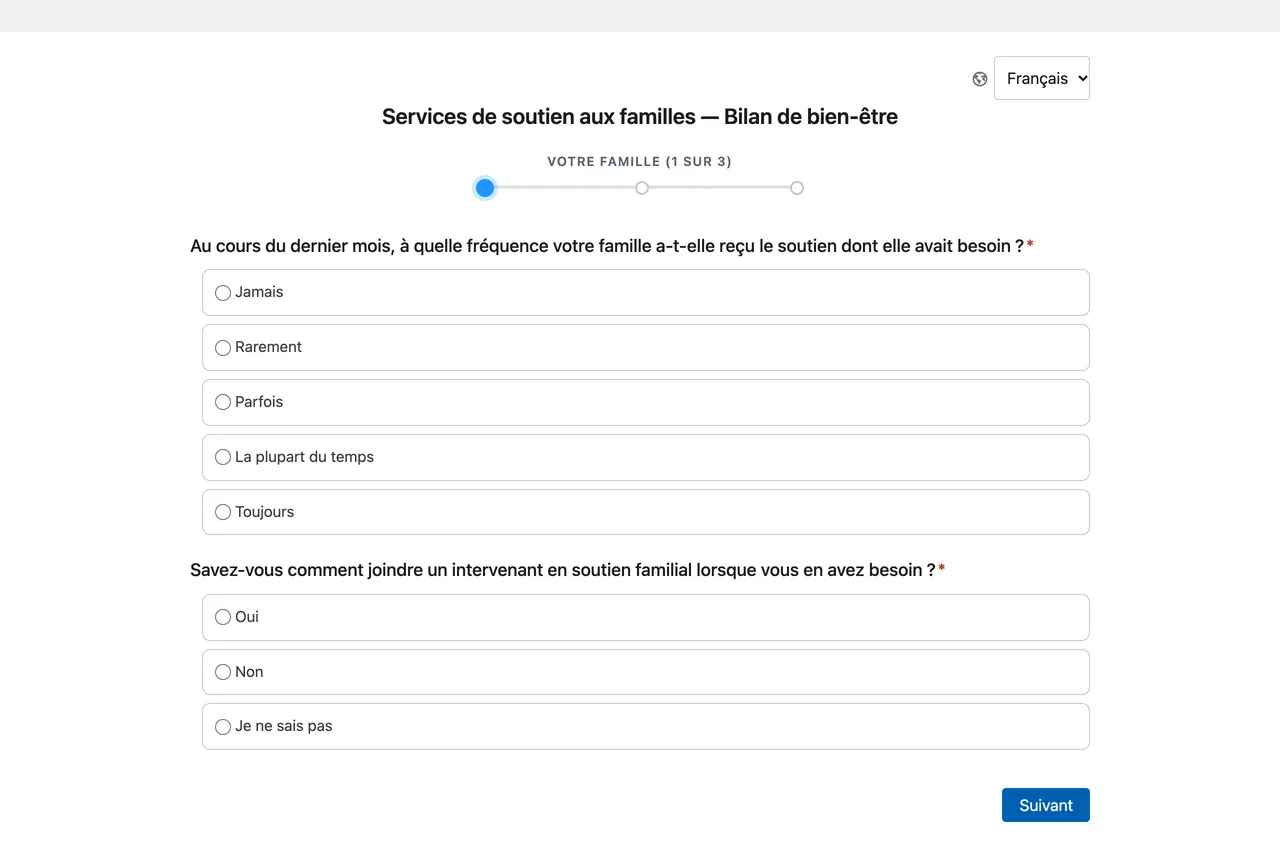
The survey on a desktop screen in French. A globe icon and a language list set to Français at the top right. The title Services de soutien aux familles, Bilan de bien-être. A progress bar. Two questions with their choices in French and a Suivant button.

04 · The survey, in French this time

Every respondent-facing text, including the buttons and the errors

The link, the invitation, the browser language or the survey's default picks the first language. The globe control changes it at any point. A regional language such as Canadian French falls back to French. The language is saved on the response at submit.

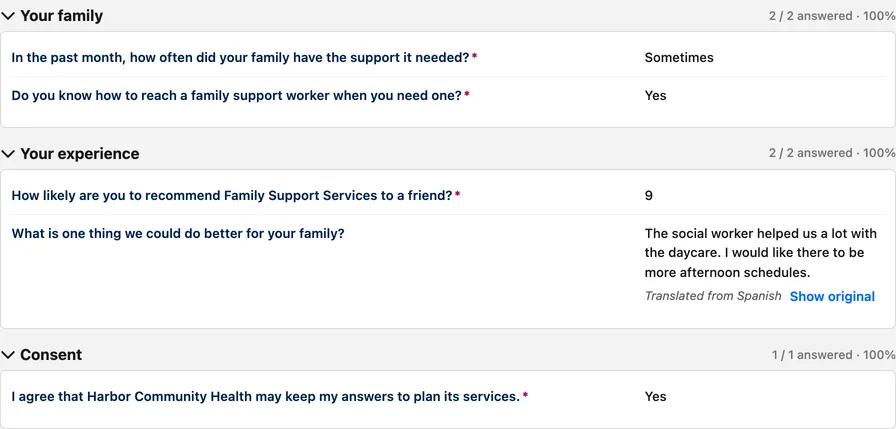
The response viewer on a submission record. The free-text answer reads: The social worker helped us a lot with the daycare. I would like there to be more afternoon schedules. Under it, the note Translated from Spanish and a link Show original.

05 · The response viewer

A Spanish answer, read in English, with the original one click away

This respondent answered in Spanish. The team reads English. The viewer shows the translation, says where it came from, and shows the original on request. The original text is never overwritten.

The Text answers section of the Languages card. A checked box, Translate text answers. The note: When this is on, AutoSurvey sends free-text answers to the AI provider for translation. The default is off. A second checked box, Put translations in the reporting record.

06 · Text-answer translation

Off by default. One setting per survey.

An admin turns it on for one survey. New answers get a translation within the hour. Earlier answers can be translated with one click. An option writes the translation into the flat reporting record for reports and Flows. Answers in a language that your team reads are left alone.

In the build

What the build includes

  • 34 left-to-right languages, from Spanish, French and Vietnamese to Polish, Korean and Ukrainian. Several languages on one survey.
  • AI translation of every respondent-facing text: title, screens, questions, choices, help text, consent text, the thank-you message, and the fixed texts such as buttons and errors.
  • Uses the AI provider your org already set up for AutoSurvey: the hosted service or your own key. Einstein support is in progress as a third provider.
  • Review in the app, in a CSV file, or in the survey's Google Sheet. Origin and review mark on every text. Words to keep for brand names.
  • Legal text confirmed by a named person at release. The release freezes the texts. A later edit waits for the next release.
  • Invitation and reminder emails in each language, with a per-language text on the send dialog and a Language input on the Flow send action. A recipient language on Contact, Lead and User.
  • Translation of free-text answers for the team, off by default, with the original kept on the record.

Not in the build

What it does not do

  • Right-to-left languages. Arabic and Hebrew are not offered.
  • Translated admin screens. The builder, the review panel and Setup stay in English.
  • Translated reports. Reports and dashboards show the source language. The response language is a field you can group by.
  • Native review of the fixed texts. The buttons and errors are AI-written. Your team can correct them like any other text.
  • Licensed instrument text. AutoSurvey ships no instrument text in any language. Your organization enters a translation it holds the right to use.
  • An AI translation is a draft until a person marks it reviewed. The card says so, and the release dialog counts what is still open.

Where it stands

Built and tested. In final review. We want one organization to switch it on first.

The build is complete and has passed its test rounds in our test orgs. It is not yet in the released package. Before it goes to every customer, we want one organization with a real multilingual survey, a bilingual reviewer on staff, and respondents who will use it. That organization gets the feature first, and its reviewer's corrections shape the fixed texts for everyone.

There is no per-language charge planned. The AI translation uses your org's AI allowance, or your own key.

AutoSurvey publishes a frozen release of every survey and stores each response as a Salesforce record. Languages are part of that release. See How it works.

Last updated 2026-10-10.