AutoSurvey
In design Every screen is a design preview with illustrative data from a fictional organization. Nothing on this page ships today.

Native question builder · core enhancement in design · design preview

Create and edit supported surveys directly in Salesforce. Google Sheets becomes optional.

Supported single-form surveys, without Google Sheets. Advanced question types and logic keep using Google Sheets at first.

Today every AutoSurvey survey is authored in a Google Sheet and imported. The builder adds a second way to author: a palette, a canvas and a properties panel inside Salesforce, with the same validation, the same live preview and the same versioned release. Surveys built in a sheet keep working exactly as they do now.

What it does

Build. Check and preview. Release.

Three steps on one Questions tab. Each one lands as the same Salesforce records that a sheet import writes today, so release, scoring, reporting and the runner do not change.

1

Build in Salesforce

Click a type in the palette or drag it onto a screen. Edit the text, help, options and one Show If rule in the properties panel. Move a question by drag, or with a Move to form from the keyboard. Save when you are ready; the status line says Unsaved changes, Saving and Saved.

2

Check and preview

The same checks the Google Sheet import runs today, shown as a problems panel with one fix link each. The preview is the real survey runner reading your saved draft, on a phone or desktop width. Nothing in the preview is saved.

3

Release a version

The release dialog shows the exact draft revision, the changes since the live version, the reporting fields it adds, and your release notes. Release freezes that revision. People in the middle of the survey finish on the old version. Results stay, by version.

Why it is useful

One place to edit, one set of checks, one release path.

No sheet needed for a new survey

A team without a Google account, or a team whose IT policy keeps survey content inside Salesforce, creates and releases a supported survey without leaving the org. A team that likes the sheet keeps it.

Problems are caught before the release

A duplicate API name, a rule that reads a later question, a choice with no options: each is named, with a fix link, while you edit. A draft with a problem cannot be released. Respondents keep the live version.

Reports keep working across versions

After the first release, a question's type and API name lock. Options keep a stored value separate from the label. Every release is a frozen version, and every answer records which version it came from.

One survey, one place to edit it

Each survey says whether its questions are edited in Salesforce or in Google Sheets. The other path is refused, so two editors can never overwrite each other. A survey can switch from the sheet to the builder in one audited step, planned for the phase after the first release.

The screens

What the native question builder will look like

Design screens, rendered in the Salesforce Lightning style. Every organization, survey, person and number is illustrative data, not a customer result. Each screen carries a ribbon that says so.

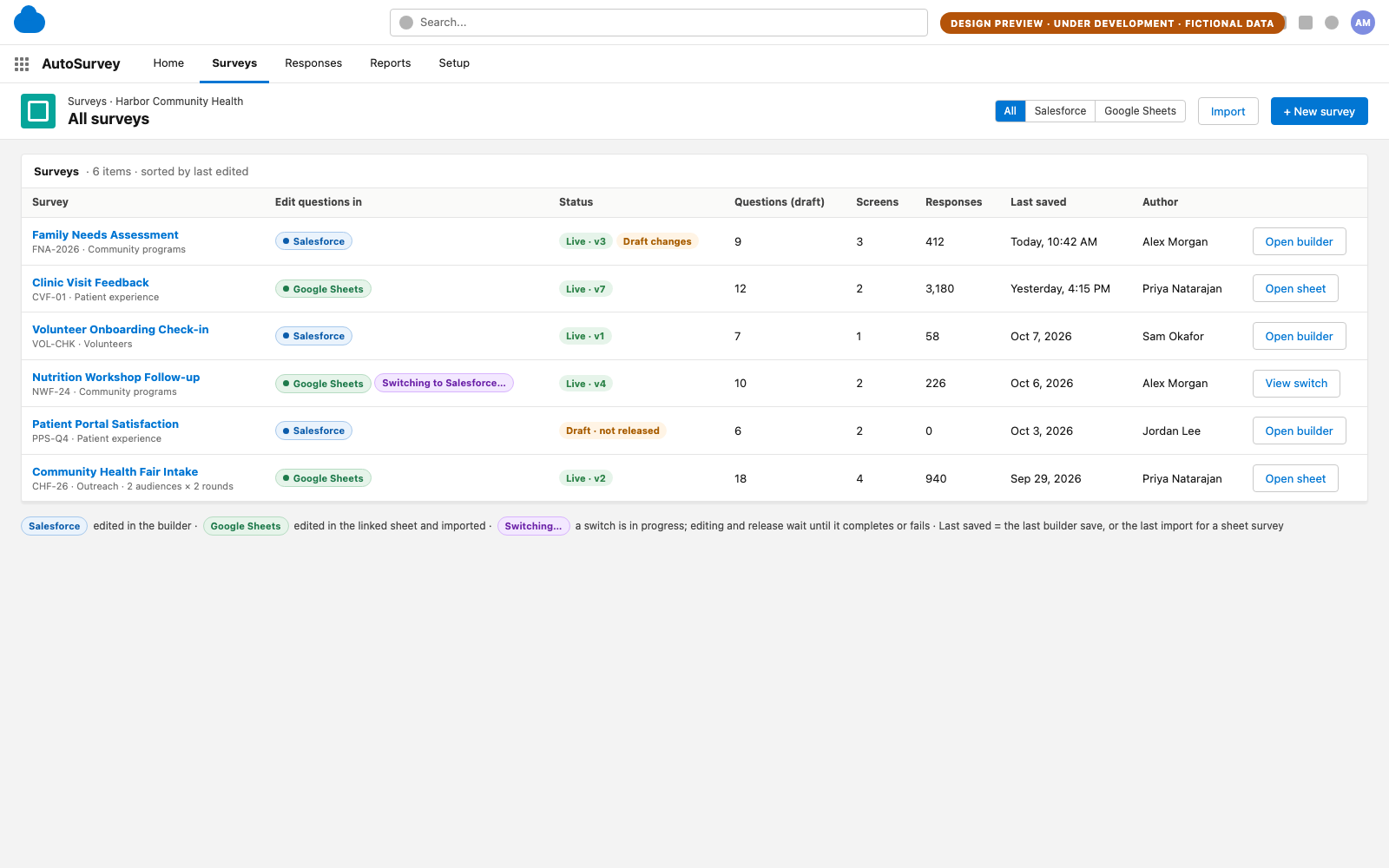
Design screen of the AutoSurvey survey list in Salesforce Lightning style: a column

01 · Survey list

One list, two places to edit

In design. Every survey shows where its questions are edited: in Salesforce, or in Google Sheets as today. A survey that is switching shows both. One row, one answer to "where do I change this?". Illustrative data.

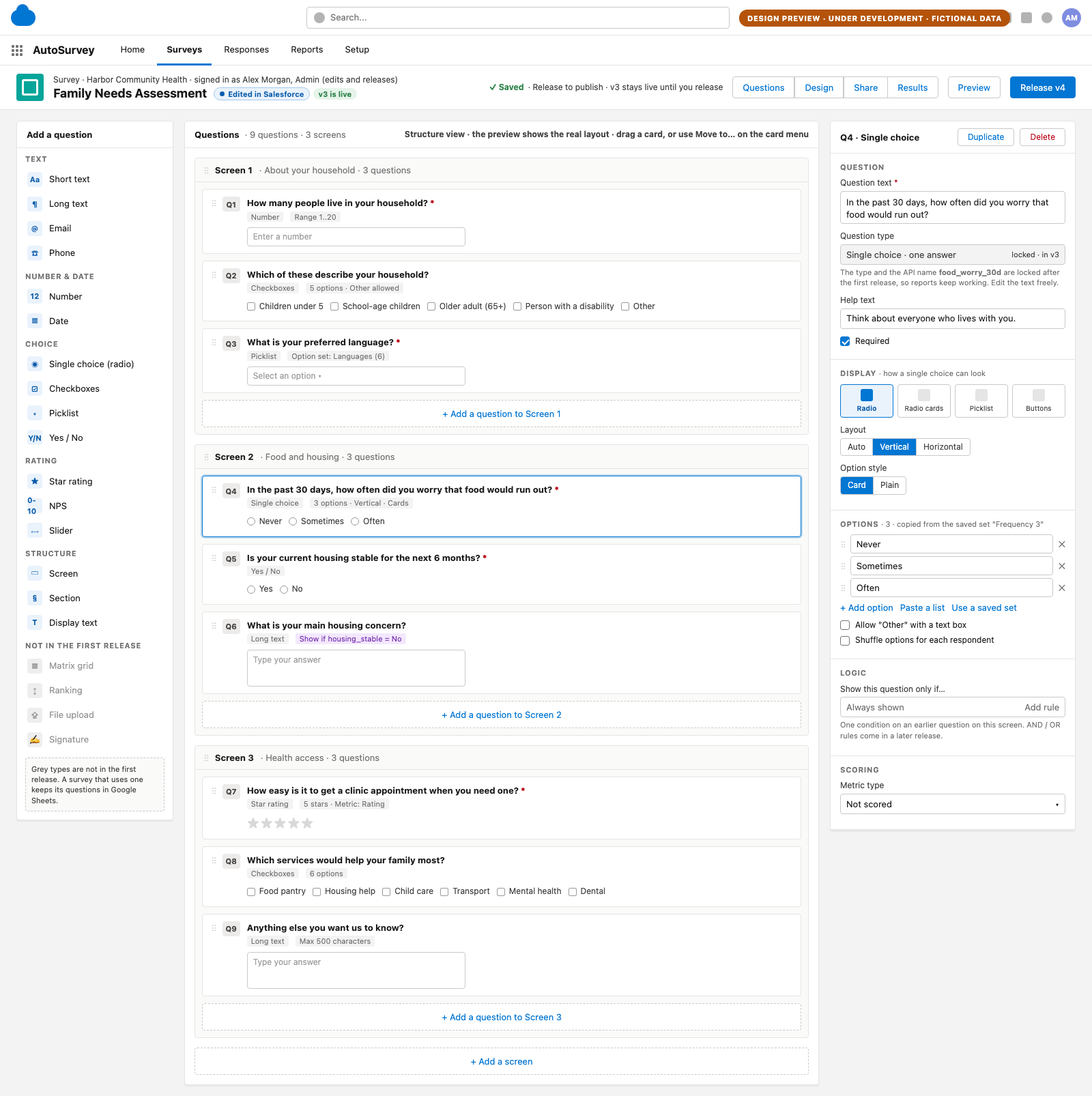
Design screen of the native question builder: a palette of question types on the left, a canvas of three screens with nine question cards in the middle, and a properties panel for the selected single-choice question on the right. Illustrative data, fictional organization.

02 · Builder canvas

Build a survey where your data lives

In design. A palette of question types, a canvas of screens and questions, and a properties panel for the selected question. The question type and API name lock after the first release so your reports keep working; the text, help, options, layout and one Show If rule stay editable. Types not in the first release show in grey. Illustrative data.

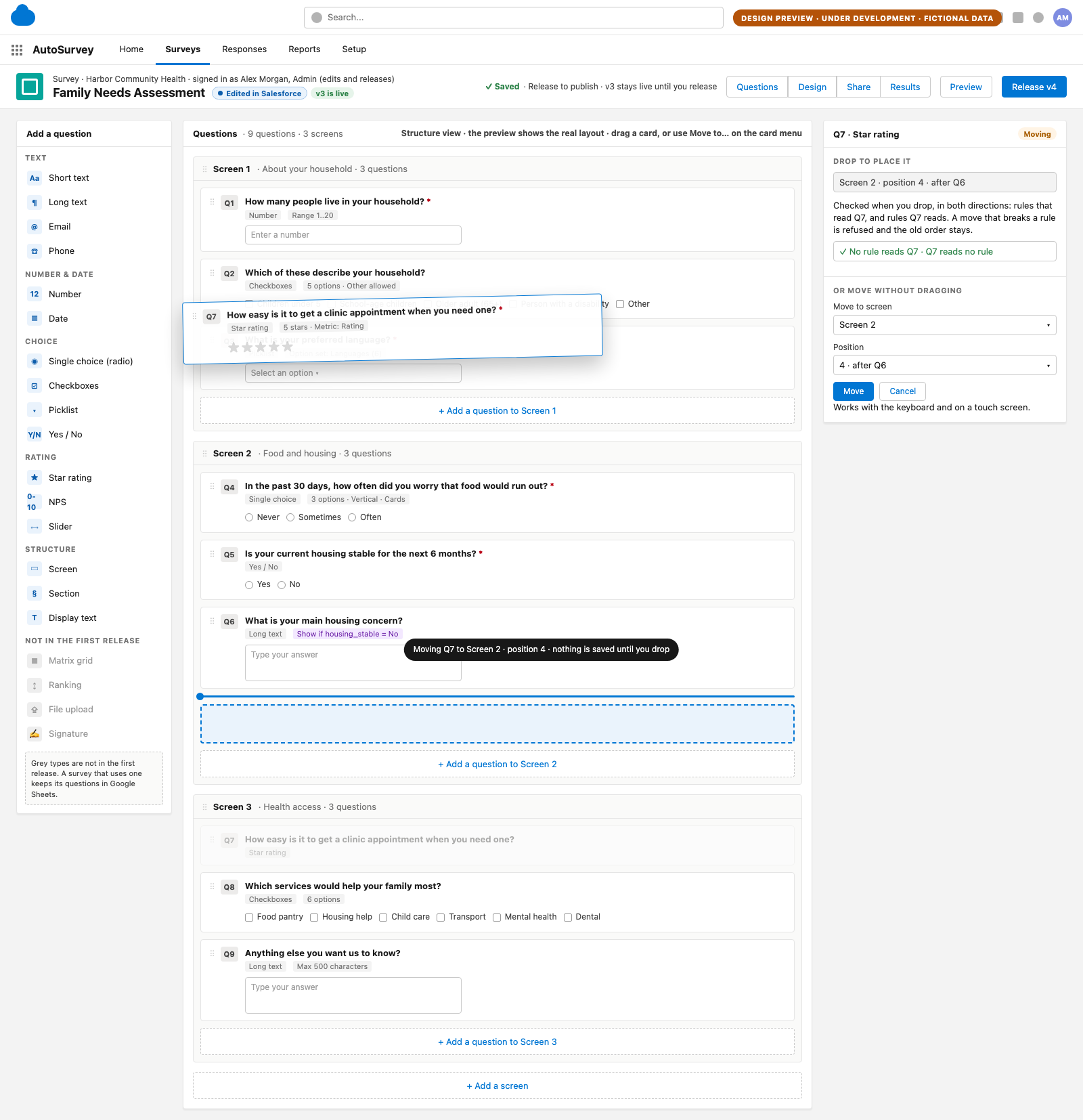
Design screen of a drag in progress: a ghost card for question 7 over a drop line in screen 2, a hint naming the target position, and a properties panel with a Move to screen and position form. Illustrative data, fictional organization.

03 · Reorder

Drag a question to another screen, or move it without dragging

In design. Drag inside a screen to reorder, or onto another screen to move. The same move works from a Move to form with the keyboard or on a touch screen. When you drop, the builder checks the Show If rules in both directions and refuses a move that would break one. Illustrative data.

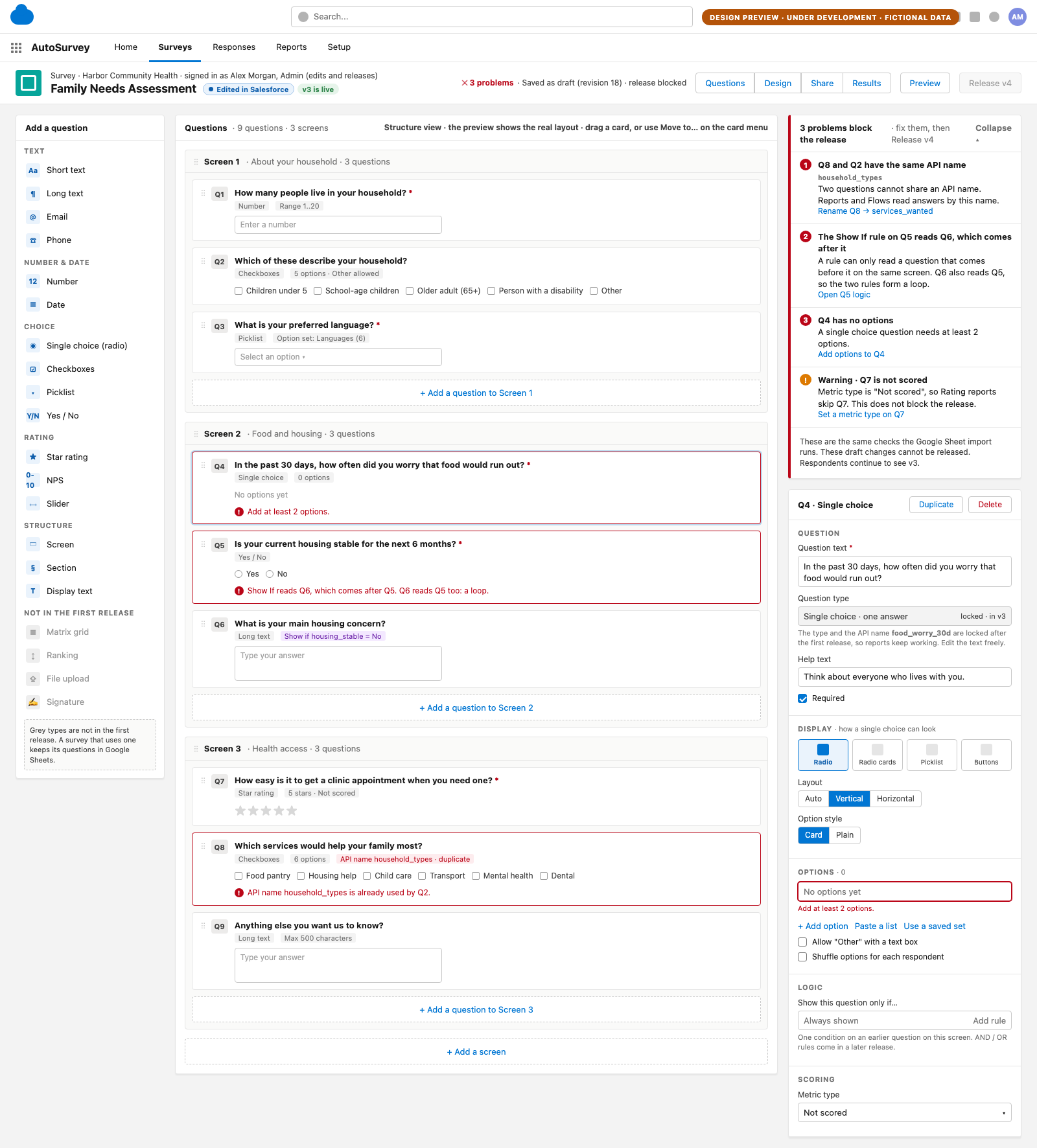
Design screen of the problems panel: three problems that block the release with a fix link each, one warning, the same errors inline on the question cards, and a disabled Release button. Illustrative data, fictional organization.

04 · Problems panel

Problems are named before anyone sees them

In design. The same checks the Google Sheet import runs today, with one fix link per problem that opens the right field. A draft with a problem saves, but cannot be released. Respondents continue to see the live version. Illustrative data.

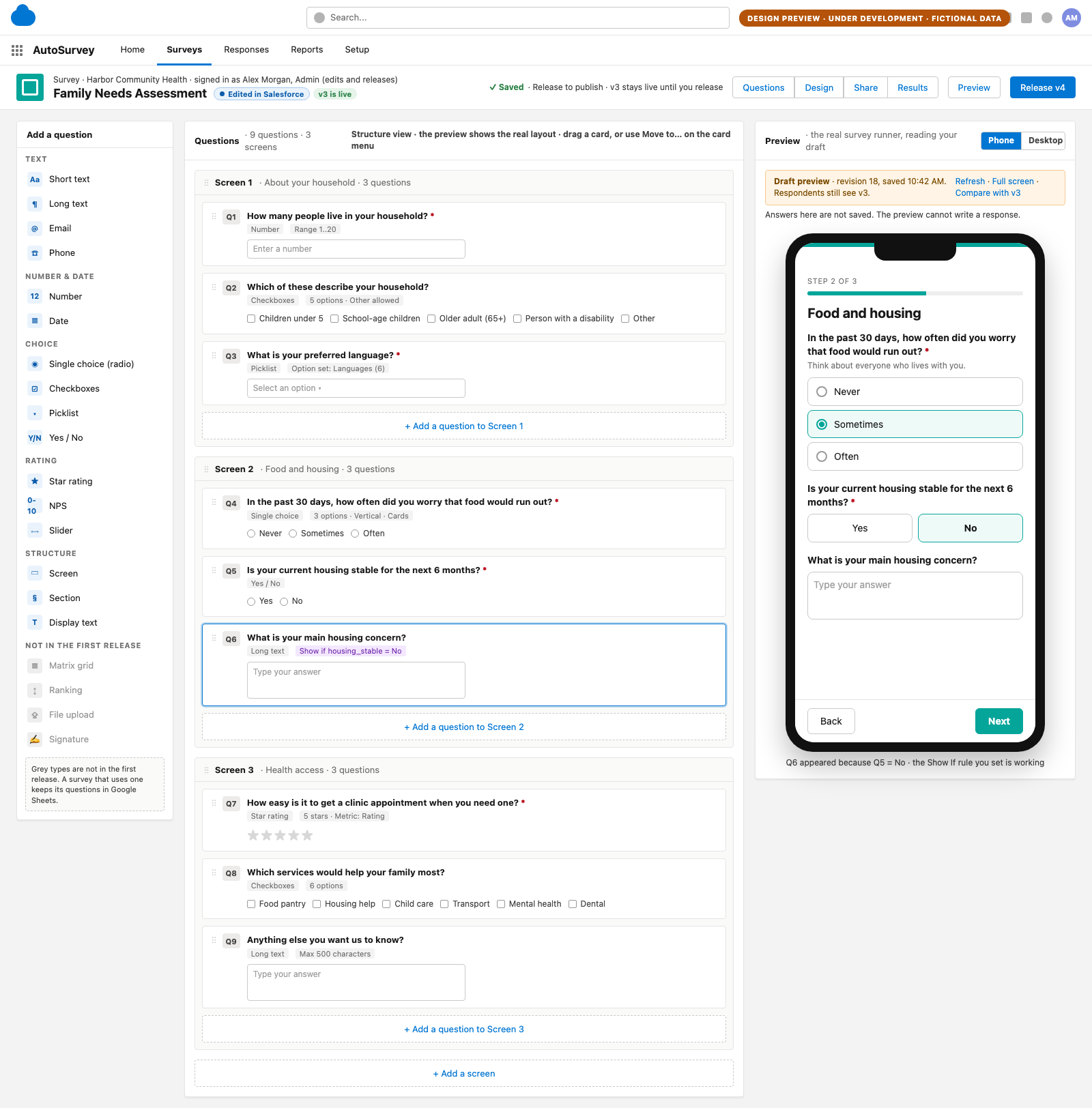
Design screen of the live preview: the canvas on the left and a phone frame on the right running the draft survey, showing a follow-up question that appeared because of a Show If rule. Illustrative data, fictional organization.

05 · Live preview

Preview the saved draft in the real survey runner

In design. The preview is the real runner, reading your saved draft, on a phone or desktop width. A Show If rule shows its result at once. Nothing in the preview is saved, and respondents keep the live version until you release. Illustrative data.

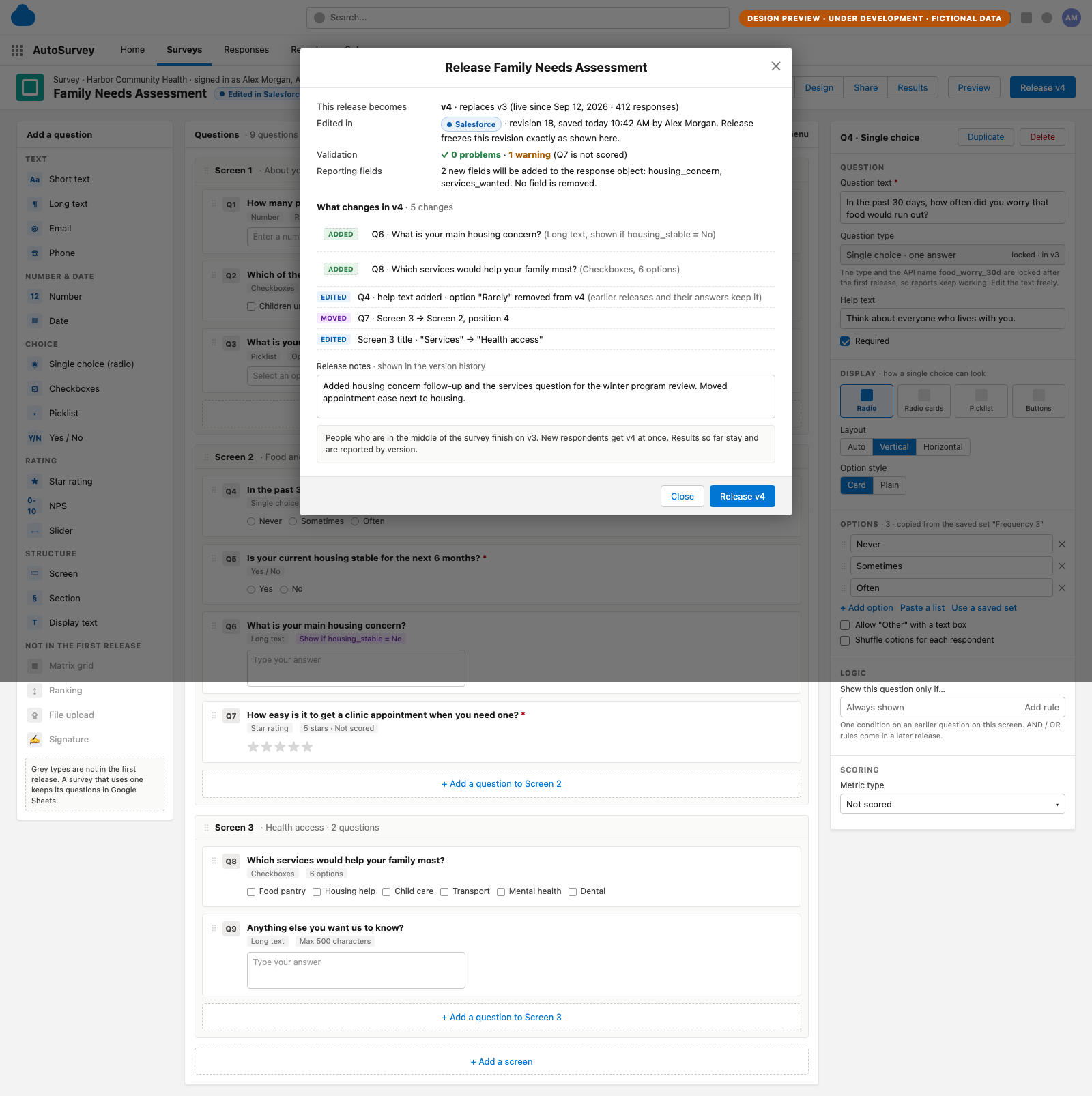
Design screen of the release dialog: the draft revision and who saved it, validation with one warning, two new reporting fields, a list of five changes, release notes, and Close and Release buttons. Illustrative data, fictional organization.

06 · Release

Release exactly the revision you reviewed

In design. The dialog shows the draft revision, its validation result, the reporting fields it adds, and every change since the live version. Release freezes that revision. People in the middle of the survey finish on the old version; results stay, by version. Illustrative data.

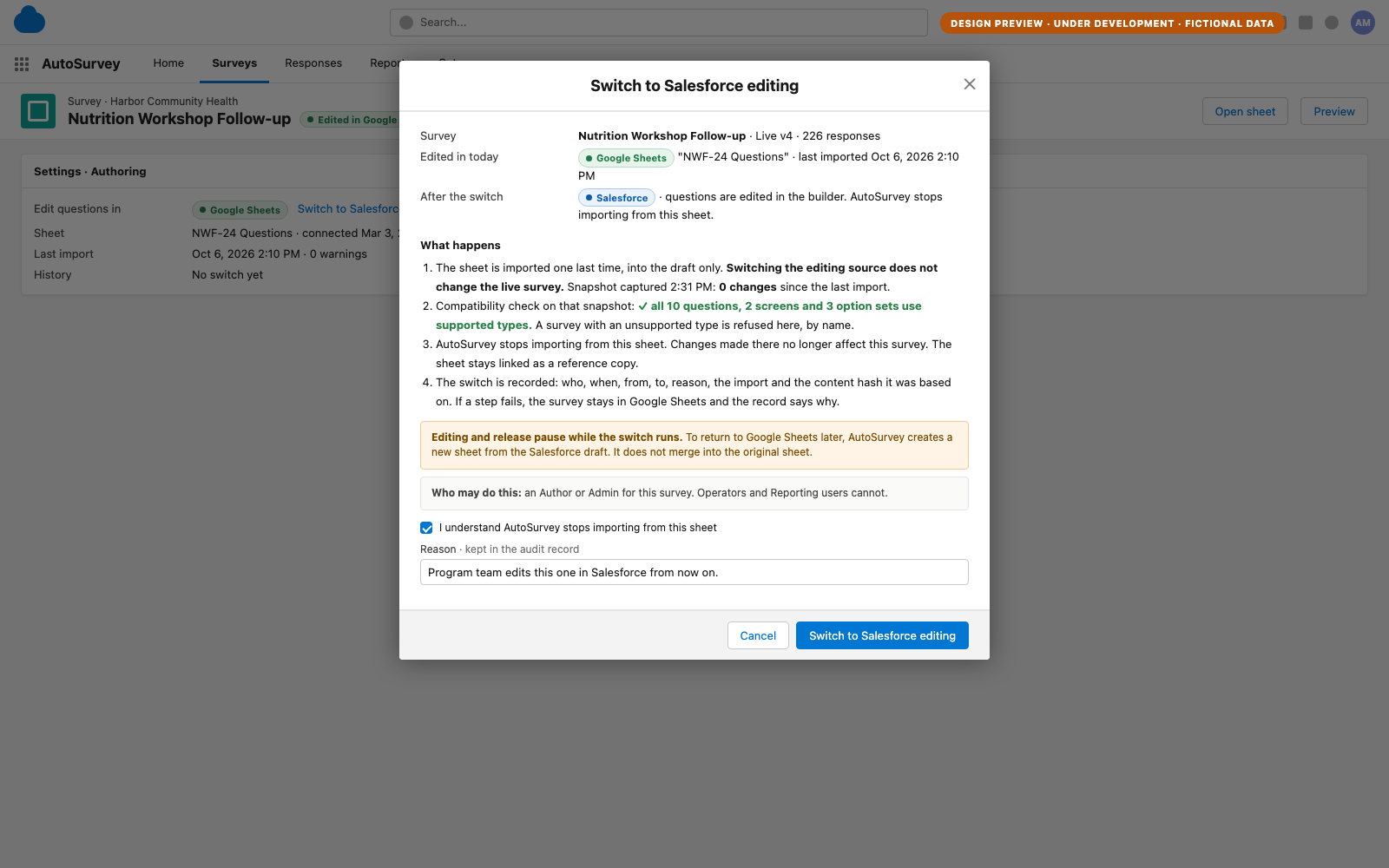
Design screen of the Switch to Salesforce editing dialog: today and after rows, four steps including a final import into the draft and a compatibility check, a note that editing pauses during the switch, who may do it, a confirmation checkbox and a reason field. Illustrative data, fictional organization.

07 · Switch from Google Sheets

Move a Google Sheets survey into the builder in one audited step

In design. Planned for the phase after the first release. The sheet is imported one last time into the draft, every question is checked against the supported list, and AutoSurvey stops importing from the sheet. The live survey does not change. The switch is recorded with who, when and why. Illustrative data.

The first release

What "supported" means

  • Text: short text, long text, email, phone.
  • Number and date: number with a range, date.
  • Choice: single choice as radio, radio cards, picklist or yes / no; checkboxes with an "Other" text box; options typed, pasted or copied from a saved set.
  • Rating: star rating, NPS, slider, each with a metric type for scoring.
  • Structure: screens, sections, display text.
  • Logic: one Show If rule per question, reading an earlier question on the same screen.
  • Flow: save, validate, preview in the real runner, release a version, respond, report, and edit a new draft while the released version stays live.

A survey is edited in Salesforce only when every question in it is supported. A survey that uses an unsupported type keeps all its questions in Google Sheets; the builder never edits half of a survey.

Kept in Google Sheets at first

What the first release excludes

  • Question types: Matrix grid, Ranking, File upload, Signature, Image, Rich text, Consent, Currency, Percent, Time, DateTime, Encrypted text.
  • Logic: AND / OR rules, rules across screens, terminal screens.
  • Suites: multi-form suites (audience × wave), inverse scoring, languages other than English.
  • The switch: moving an existing Google Sheets survey into the builder is designed as the phase after the first release.
  • Save: the first release has an explicit Save button. Autosave follows once the save path is measured at the largest supported survey size.

Every one of these keeps working in Google Sheets exactly as today. Nothing is taken away.

Where it stands

Designed and reviewed. Not built. We build it with a design partner.

The design is complete, down to the data model, the tests and the effort by phase, and it went through an independent design review. The first release is a bounded slice: a survey a buyer can create, release and report on with no Google Sheet at all. We start the build when one organization names an owner and a survey they will build and run in the builder. No customer uses the native question builder. No number on this page is a customer result.

In design — not yet available. Screens shown are design previews. First release scope: create a new single-form survey in Salesforce with no Google Sheet; add, edit, move and delete questions, screens and options with one Show If rule per question; save, validate, preview with the real runner, release, and edit a new draft while the released version stays live. Excludes: switching an existing Google Sheets survey to Salesforce editing (designed as the next phase), Matrix grid, Ranking, File upload, Signature, Image, Rich text, Consent, Currency, Percent, Time, DateTime, Encrypted text, terminal screens, AND / OR and cross-screen Show If rules, multi-form (audience × wave) suites, inverse scoring, and languages other than English. Seeking a paid design partner.

Last updated: 2026-10-10

If that is you, become a design partner. The builder is a core enhancement of AutoSurvey, not an add-on; pricing does not change. Two add-ons are also under development: Program Outcomes and the Fraud & Quality Shield.

AutoSurvey already authors every survey in a Google Sheet, with a live preview and versioned releases. The builder adds a second way to author, inside Salesforce. See Author & review.