
Interview mode · Survey setup with AI
Answer a few questions. AutoSurvey sets up the rest of your survey.
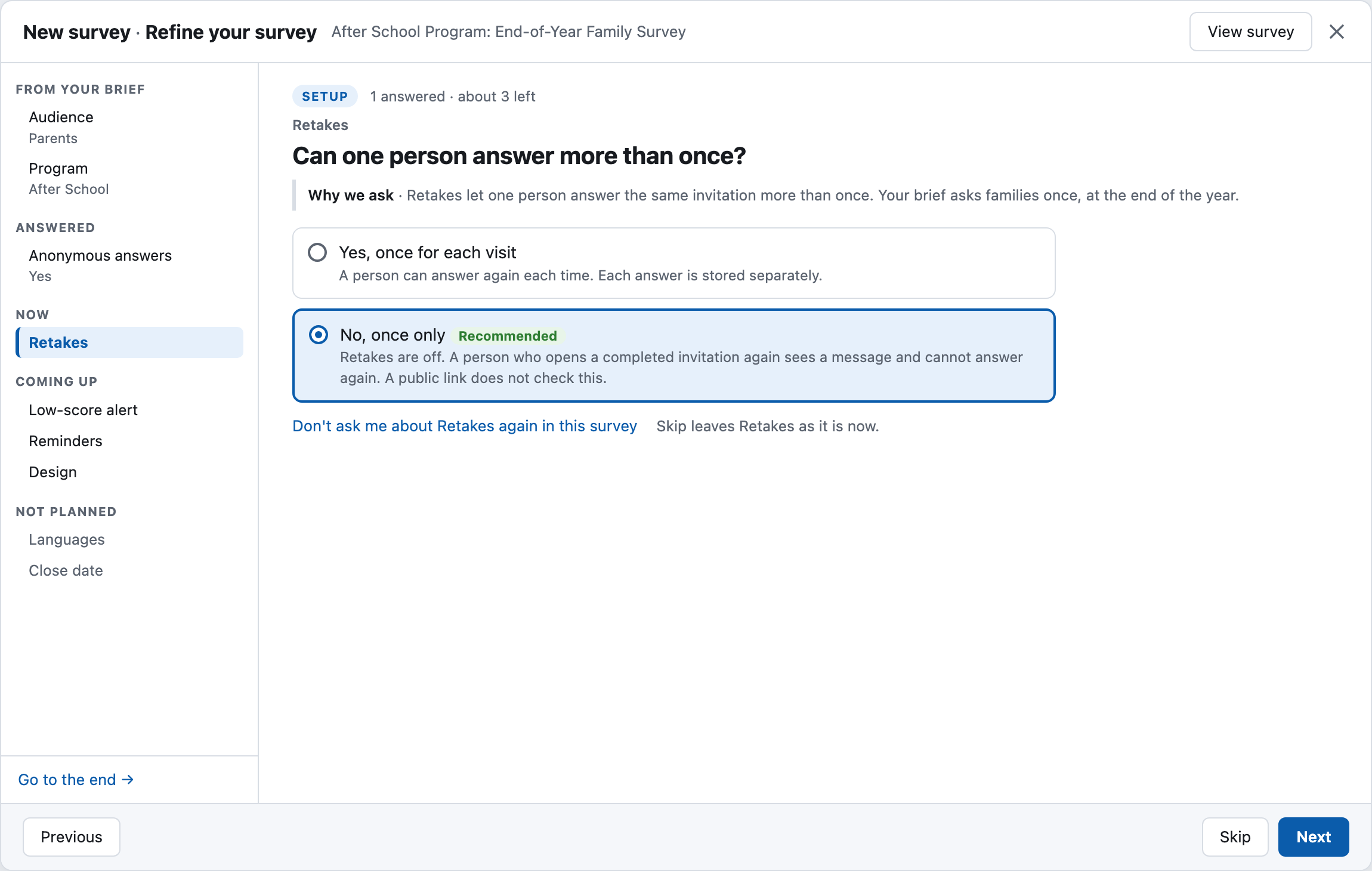
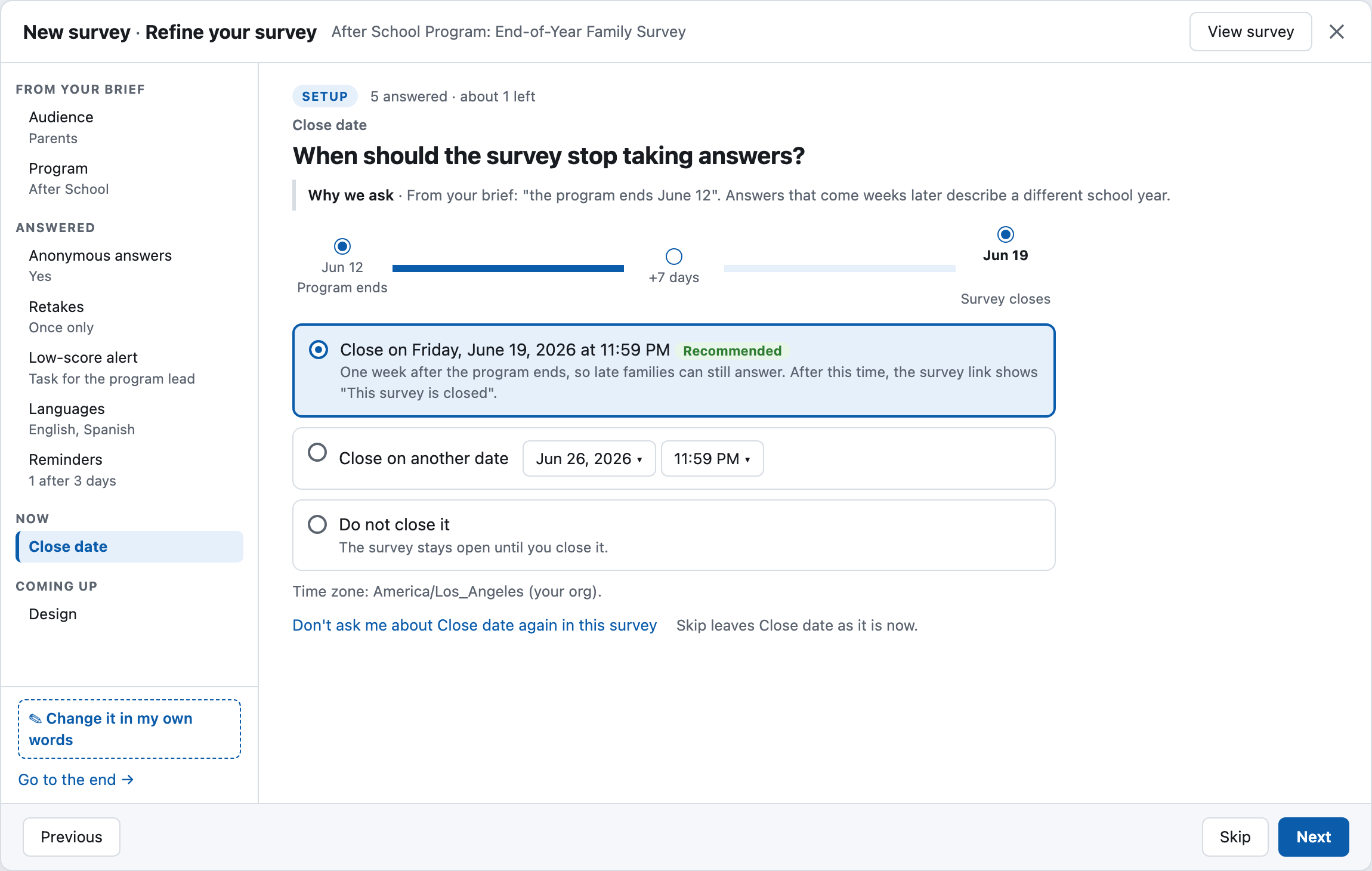
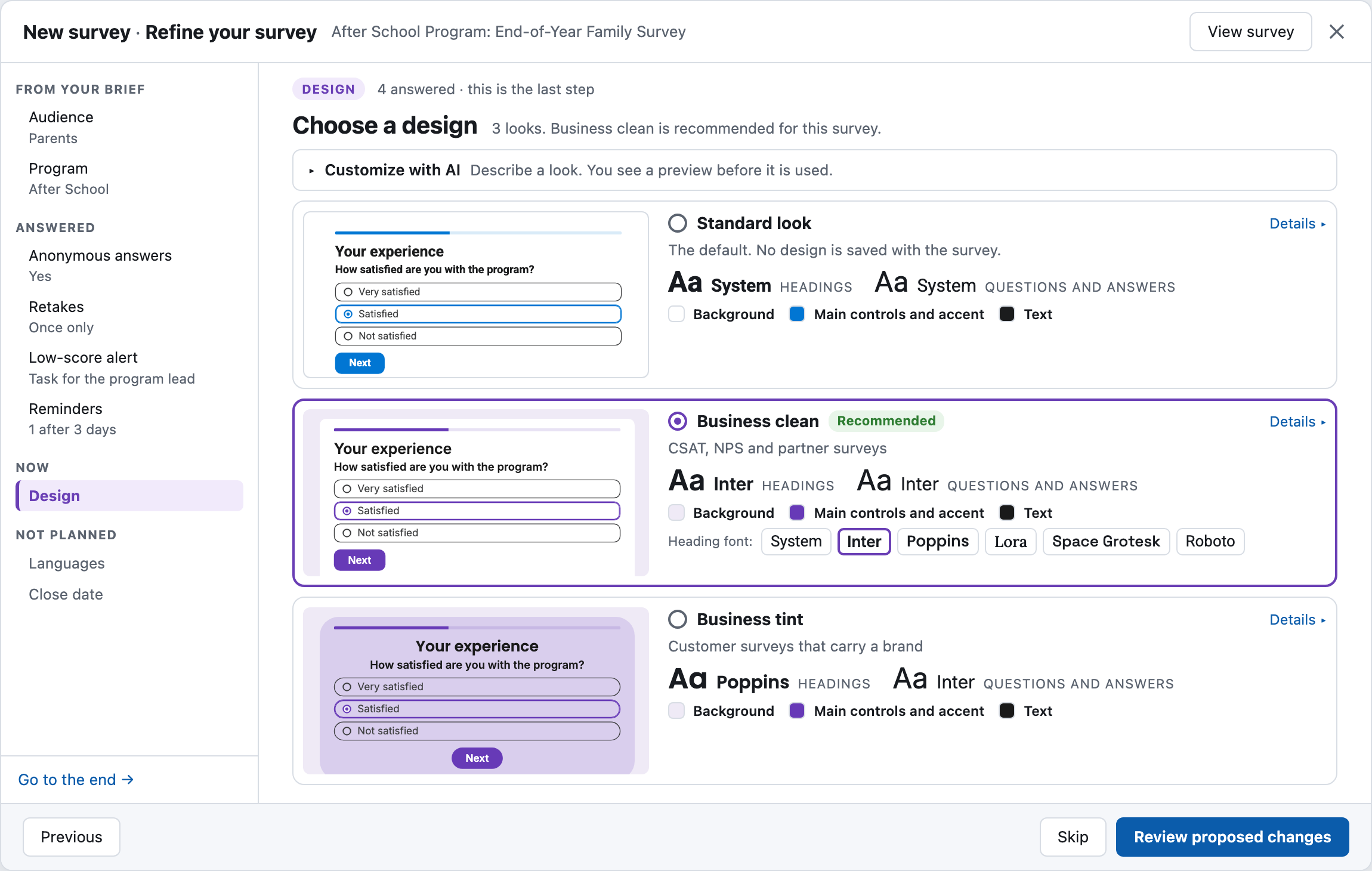
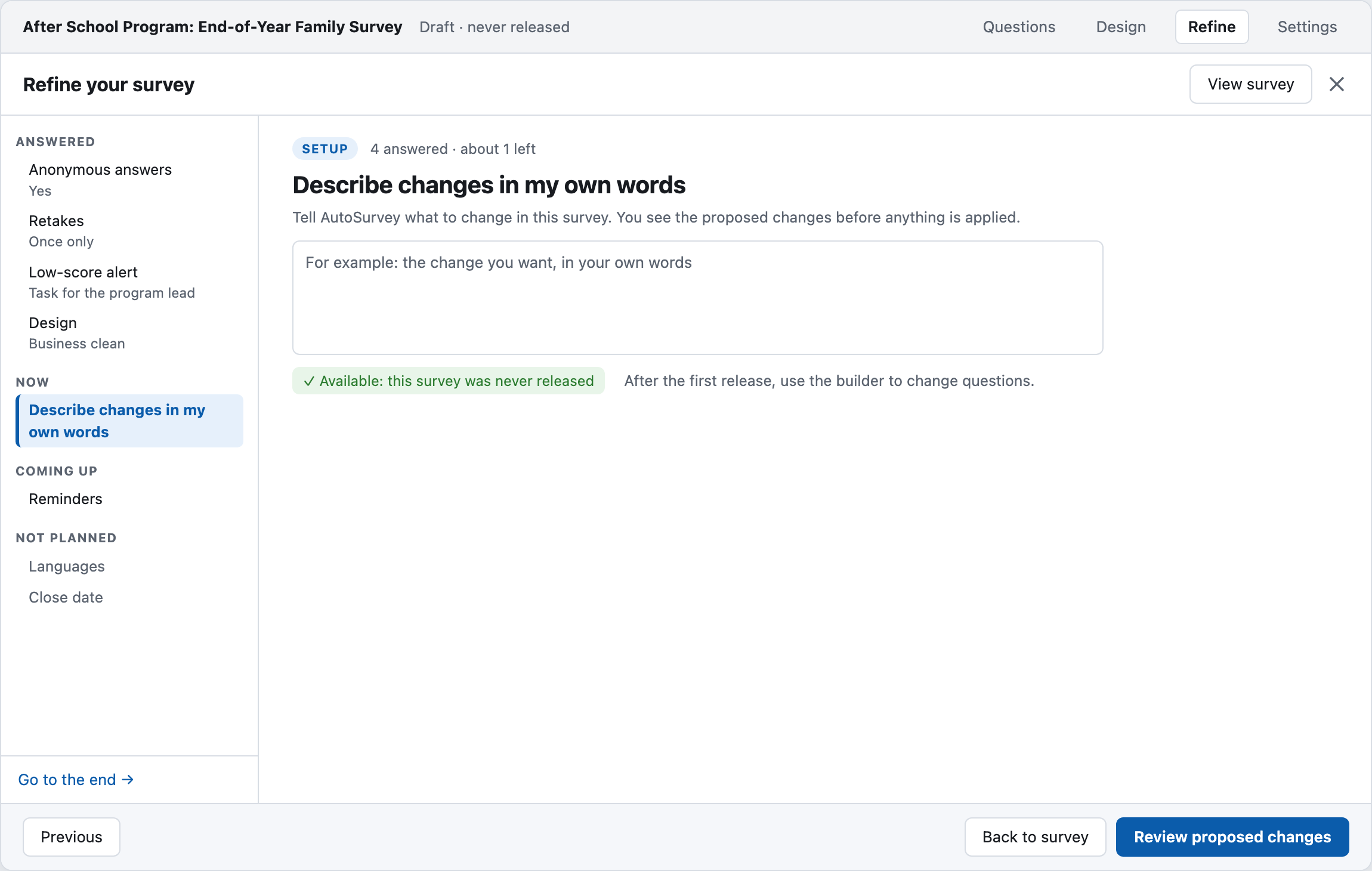
After the AI writes a first draft from your description, interview mode asks you a short set of questions about that survey. Each screen explains one AutoSurvey feature and recommends a choice. You keep the recommendation, pick another choice, or skip.
The interview is for the person who builds the survey. Respondents never see it.
AutoSurvey has many settings that a new author does not know about: reminders, a close date, languages, a low-score alert, a bot check and more. Interview mode finds the settings that apply to this survey and asks about them, one screen at a time.
The AI reads your description and the draft. Then it plans a short list of topics. Each topic is one AutoSurvey feature. You find interview mode on the Review step of the New Survey flow. It is also in the builder, in the Refine panel, for a survey that is not released yet.
Only the topics that apply.
The AI picks topics from your description and the draft. A rail on the side shows what came from your brief, what you answered, the current topic and what comes next.
A recommendation on every screen.
Each screen says what the feature does and why AutoSurvey asks. One choice is marked "Recommended". To finish quickly, click "Use the recommendations for the rest".
You see each change.
The Questions view lists each change to your questions, with Undo and "Undo all". Question changes wait until you click "Update the survey".
The screens
These are design mockups. They use sample data for a fictional after-school program.
What it does, and what it does not do
What interview mode does
- Asks the survey author about one feature at a time. Each screen has "What it does", a recommended choice, Skip and Next.
- Asks more or fewer questions. The depth is Quick, Standard or Thorough. An admin sets the default depth.
- Lets you skip a topic, or click "Don't ask me about this again". You can also go to the end, or stop and go to Review.
- Shows "Turned off in this org" for a feature that is off. An admin can turn it on from the screen. Other users can copy a message to their admin.
- Lists each question change in the Questions view, with Undo and "Undo all".
- Can propose one adaptive question in Preview, before you create the survey. The question is about an earlier answer. You accept or reject it.
- Keeps the interview, your answers and the change history in your Salesforce org.
What it does not do
- It does not interview your customers. Respondents see only the result: the questions, the settings and any adaptive question that you accept.
- It does not read survey responses.
- It does not keep all data in Salesforce. Your description, the draft, your interview answers and the question text go to your AI provider. Responses, names, email addresses and record IDs do not.
- It does not run with an Einstein model. It runs only with an AI model that AutoSurvey marks for the interview. "Describe changes in my own words" works when the interview is not available.
- It does not hold every change for approval. A settings answer goes to the survey when you save it.
- It does not redesign a released survey. After release, you can change settings and text only. AutoSurvey does not remove a question that has answers.
- Preview before Create does not show the design or the settings.
Who can use it
Interview mode is off until an admin turns on its switch and gives the AutoSurvey_AI_Refine permission set. The author must own the draft and be able to edit it. Guest users cannot use it.
Survey author
The person who builds the survey in Salesforce. Interview mode asks this person, not the people who answer the survey.
Topic
One AutoSurvey feature that the interview can ask about. For example: reminders, a close date, languages or a low-score alert.
AI provider
The company whose AI model your org uses for AutoSurvey. Your admin chooses it.
Do your authors miss settings they do not know about?
Bring one survey that you send today. We will walk through interview mode with you on that survey and answer your questions.
All data on these mockups is sample data for a fictional after-school program.