
AI images · Pictures for answer choices
A picture for each answer choice, in your own words.
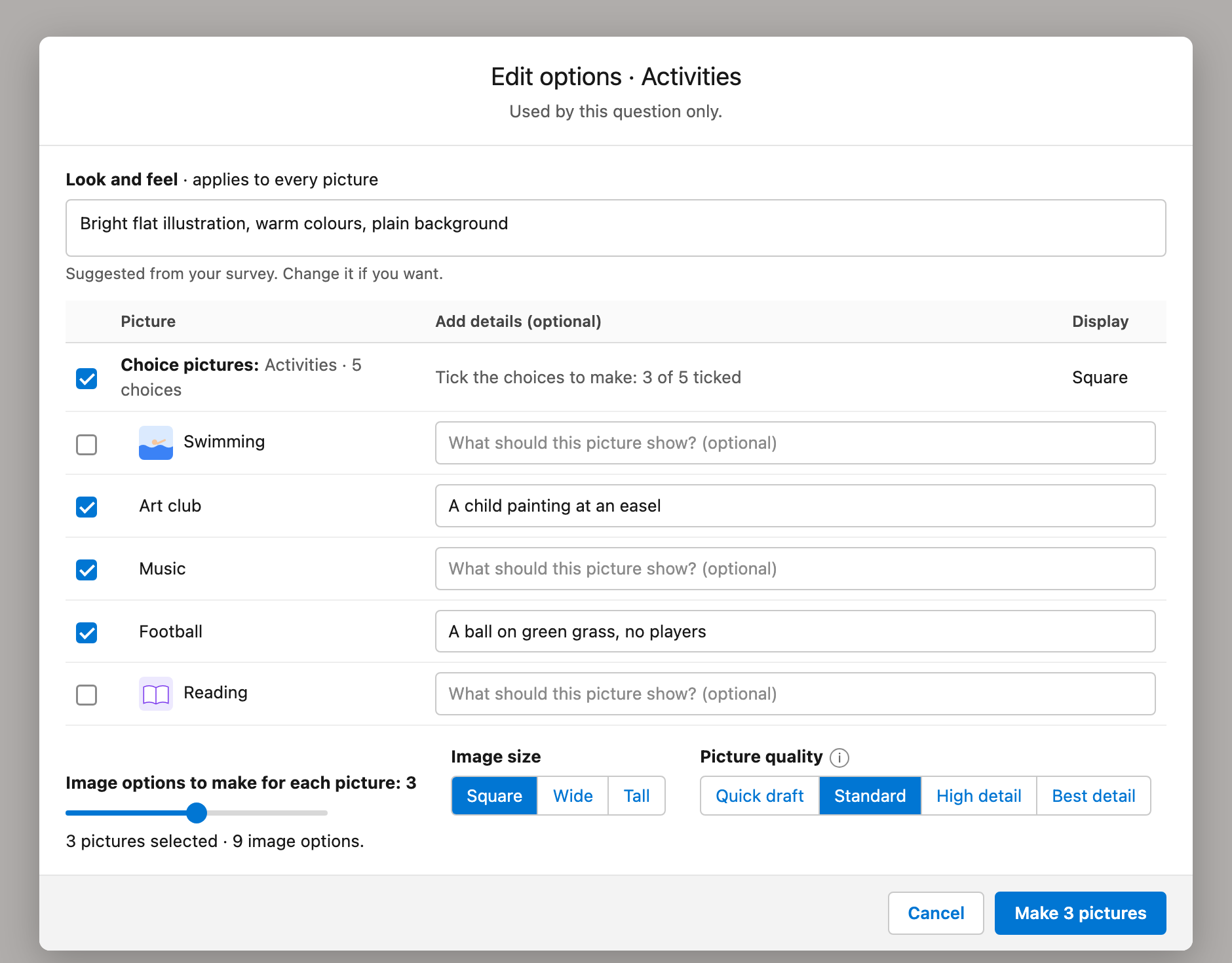
Open the choices of a question and click "Make with AI". Each choice gets its own row and its own text box. Type what each picture shows. Then pick the best picture option for each choice.
The pictures come from OpenAI image models. An admin turns on AI images in AutoSurvey Setup.
Pictures help respondents find a choice quickly, on a phone and on a computer. The AutoSurvey AI images panel makes a header, a background, a favicon and a picture for each answer choice.
In the panel, each answer choice has its own row. Tick the choices that need a picture, and type what each picture shows. AutoSurvey makes up to three pictures at the same time, so a set of pictures is ready sooner.
Your words for each picture.
Each choice has a text box: "What should this picture show?" When you type in a box, AutoSurvey ticks that choice. Only the ticked choices get new pictures.
Current pictures stay.
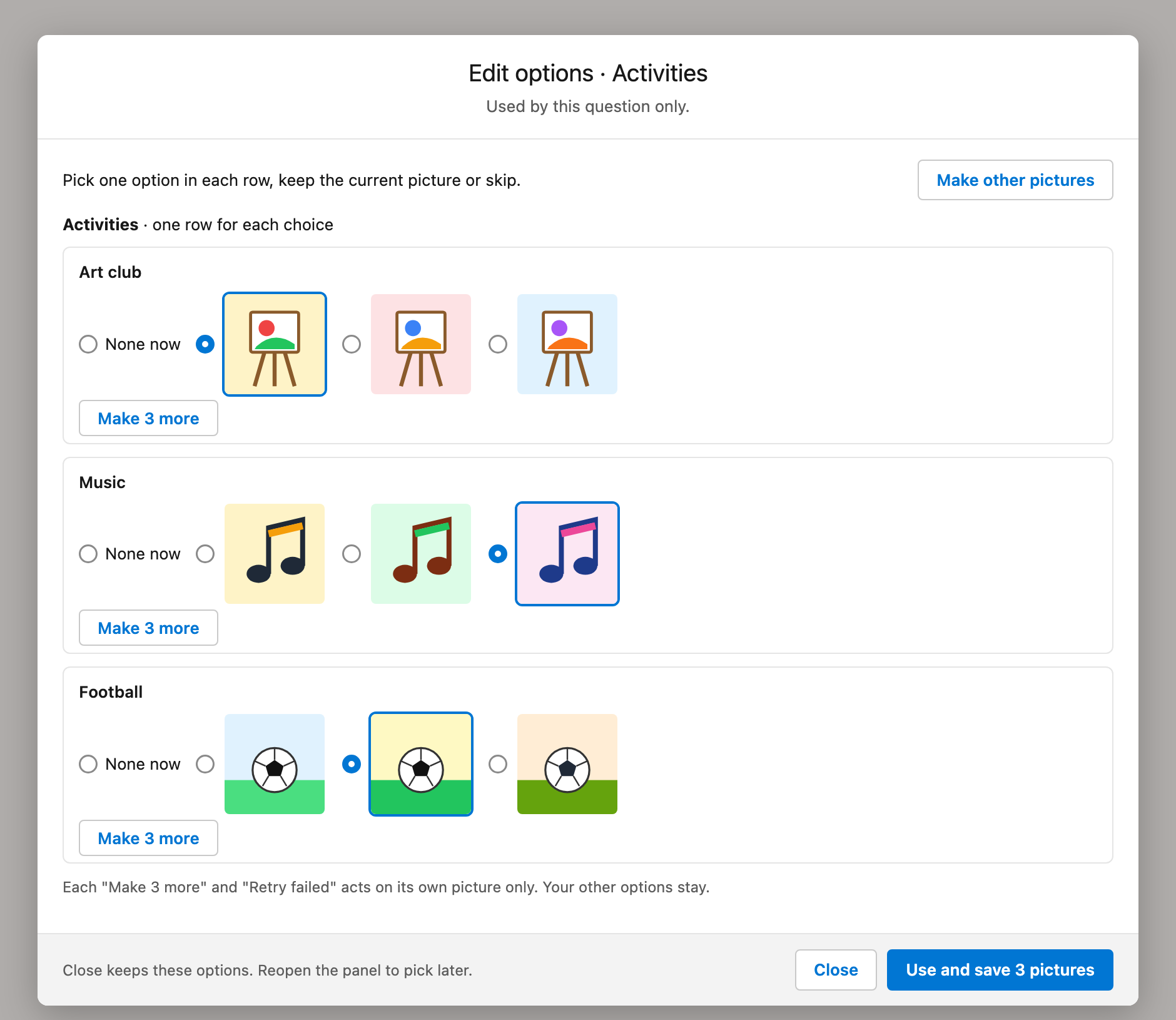
A choice that has a picture opens unticked. After Make, each row starts on "Keep current" or "None now". A new picture replaces the old one only when you pick it.
Pictures at the same time.
AutoSurvey makes up to three pictures at the same time. In our test, 10 pictures took 47 seconds. One picture after the other took 100 seconds.
The screens
These are design mockups. They use sample choices for a fictional after-school program. The pictures in them are simple drawings, not AI pictures.
What it does, and what it does not do
What AI images do
- Gives each answer choice its own row, tick and text box in the "Make with AI" panel.
- Sends each ticked choice with its own label and its own details. The "Look and feel" text applies to every picture.
- Makes 1 to 5 picture options for each choice. The size is Square, Wide or Tall. The quality is Quick draft, Standard, High detail or Best detail.
- Shows an estimated cost in dollars before you click Make.
- Makes up to three pictures at the same time. When OpenAI asks AutoSurvey to slow down, a picture waits one minute and tries again, at most two times.
- Makes 3 more options for one choice, or tries a failed picture again, and keeps your other picks.
- Uses the question text as context when only one question uses the choices.
What it does not do
- It does not use an image provider other than OpenAI.
- It does not make more than 12 pictures in one Make. It does not run more than one image job in an org at a time.
- It does not show a fixed price. The dollar amounts are estimates.
- It does not show the panel in other languages. The panel text is in English.
- It does not put text, logos, trademarks or real people in pictures. The panel refuses a request for them.
- It does not send respondent answers, names or email addresses to OpenAI.
What goes to OpenAI
For each picture, AutoSurvey sends a prompt. The prompt has the choice label, your details for that choice and the "Look and feel" text. When only one question uses the choices, it also has the question text. AutoSurvey also sends the model, the size, the quality and a one-way code made from the org ID and the user ID.
When the "Look and feel" box is empty, AutoSurvey can suggest a look. That request sends the survey title, the welcome text and the newest draft prompt to the AI model of your AutoSurvey AI setup.
Who can use it
An admin turns on AI images in AutoSurvey Setup. The switch gives the AutoSurvey_AI_Images permission set to the AutoSurvey admins. The user also needs edit access to the survey. On the Trial plan with the AutoSurvey key, an org can make 30 AI images a month.
Choice picture
A picture that shows with an answer choice. The respondent can tap the picture to pick the choice.
Picture option
One of the pictures that AutoSurvey makes for a choice. You pick one option for each choice.
Look and feel
A short description of the style for every picture. For example: "flat illustration, warm colours".
Do your questions need pictures for their choices?
Bring one question that has picture choices. We will show you the panel with that question and answer your questions.
All data on these mockups is sample data for a fictional after-school program. The pictures are drawings, not AI output.