
Signed link data · Feature pack
One survey. A link for each store.
Add store, campaign or partner information to your survey links. AutoSurvey locks the values it adds, and leaves out values it cannot verify. Group your responses by store in your Salesforce reports.
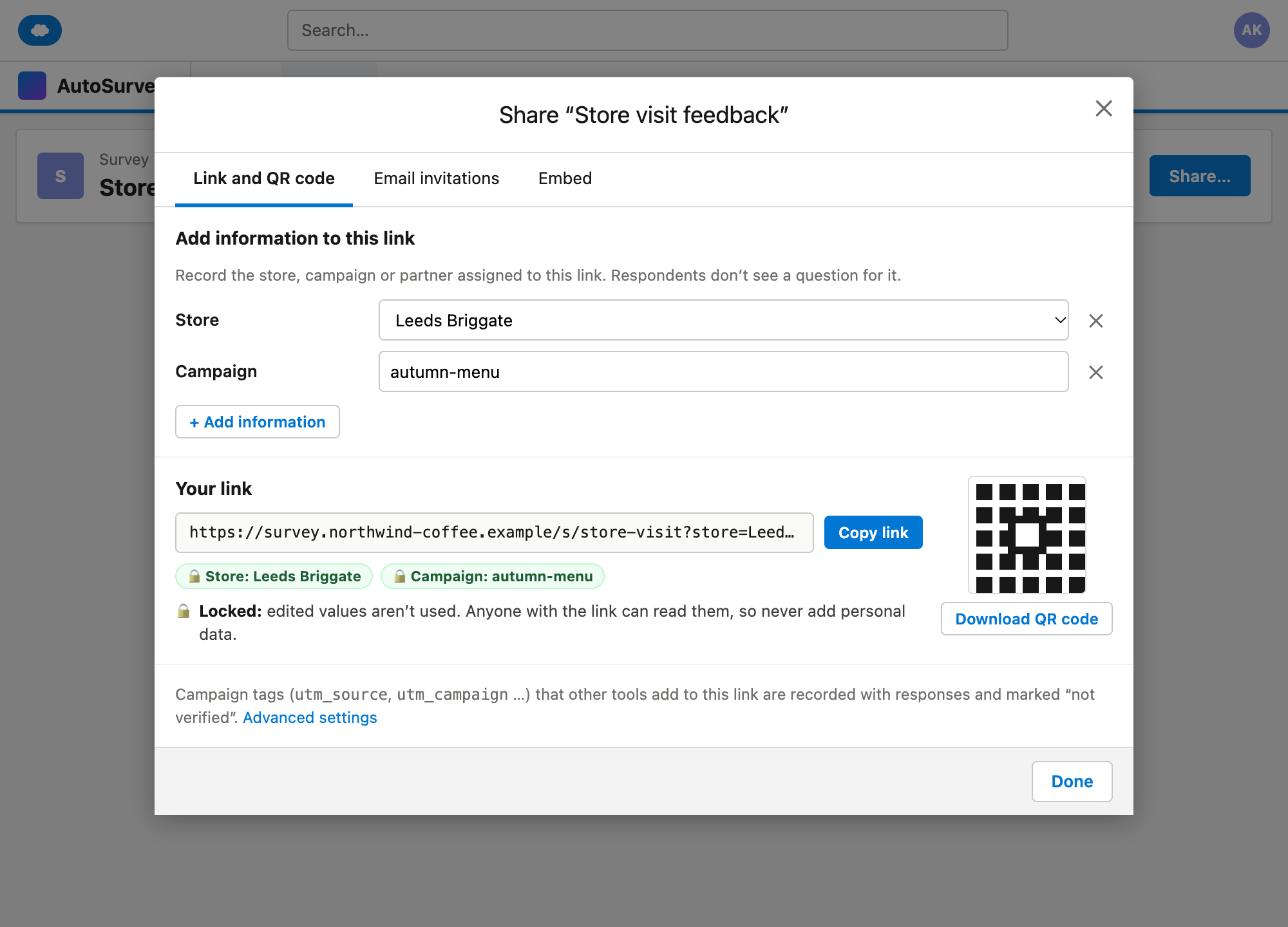
Locked means that AutoSurvey does not use an edited value. Anyone with the link can still read the value. Never put personal data in a link.
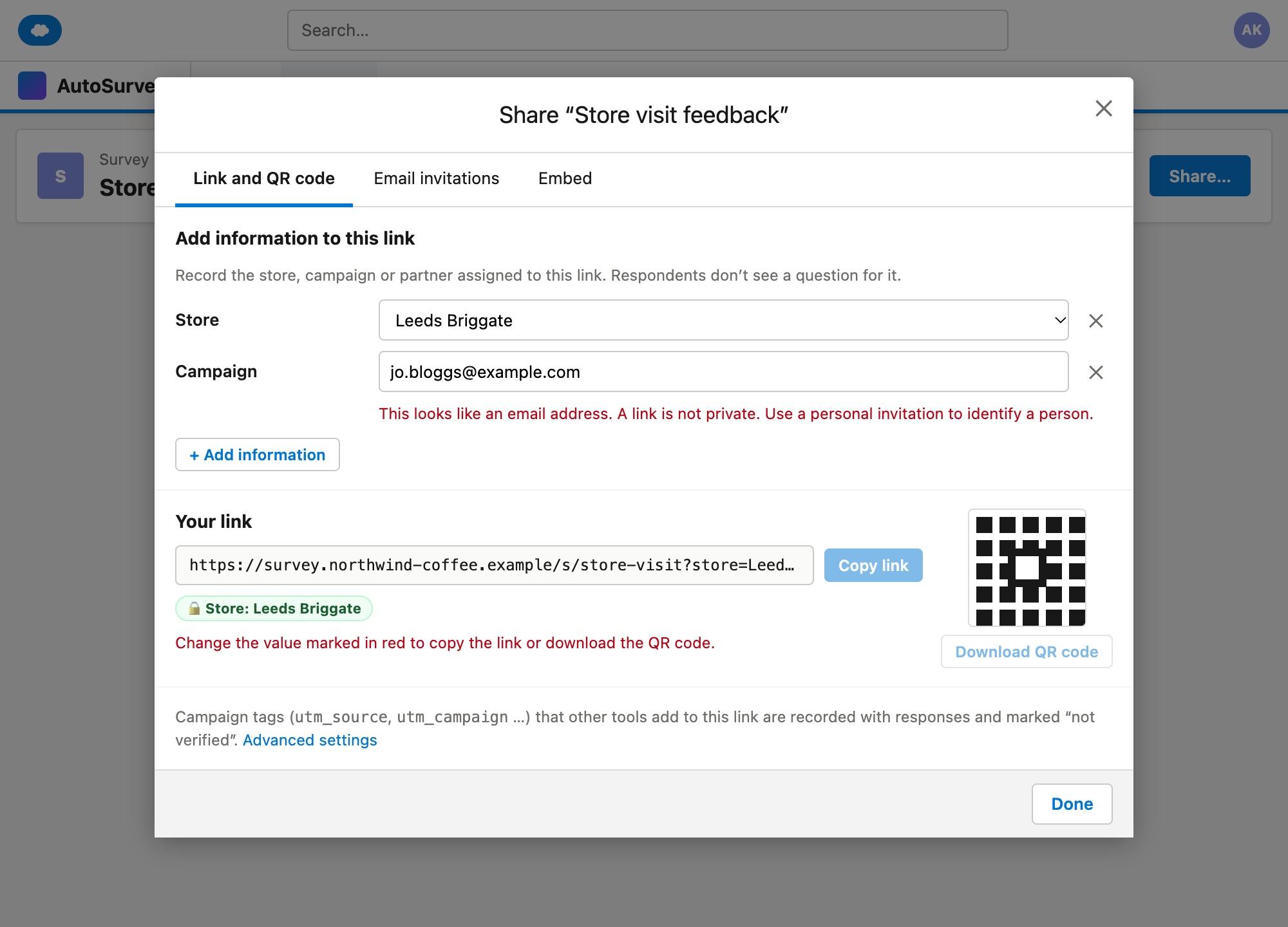
Many survey tools read information from the end of a link, for example ?store=Leeds. When a tool accepts that text without a check, a person who edits the link changes what your report records. Signed link data fixes this in AutoSurvey. You add the information when you share the survey. AutoSurvey locks it. Each response then shows the value as a column. The link never decides which person or which Salesforce record a response belongs to.
Add it when you share.
In the share dialog, pick Store, Campaign or Partner and set the value. Copy the link or download the QR code. There is no setup page and no extra step to lock the value.
An edited value is not used.
AutoSurvey adds a short code to the link. If a person edits a locked value, the code does not match. AutoSurvey then uses none of the locked values in that link. The survey still opens, and the response is saved.
Refused, never cut short.
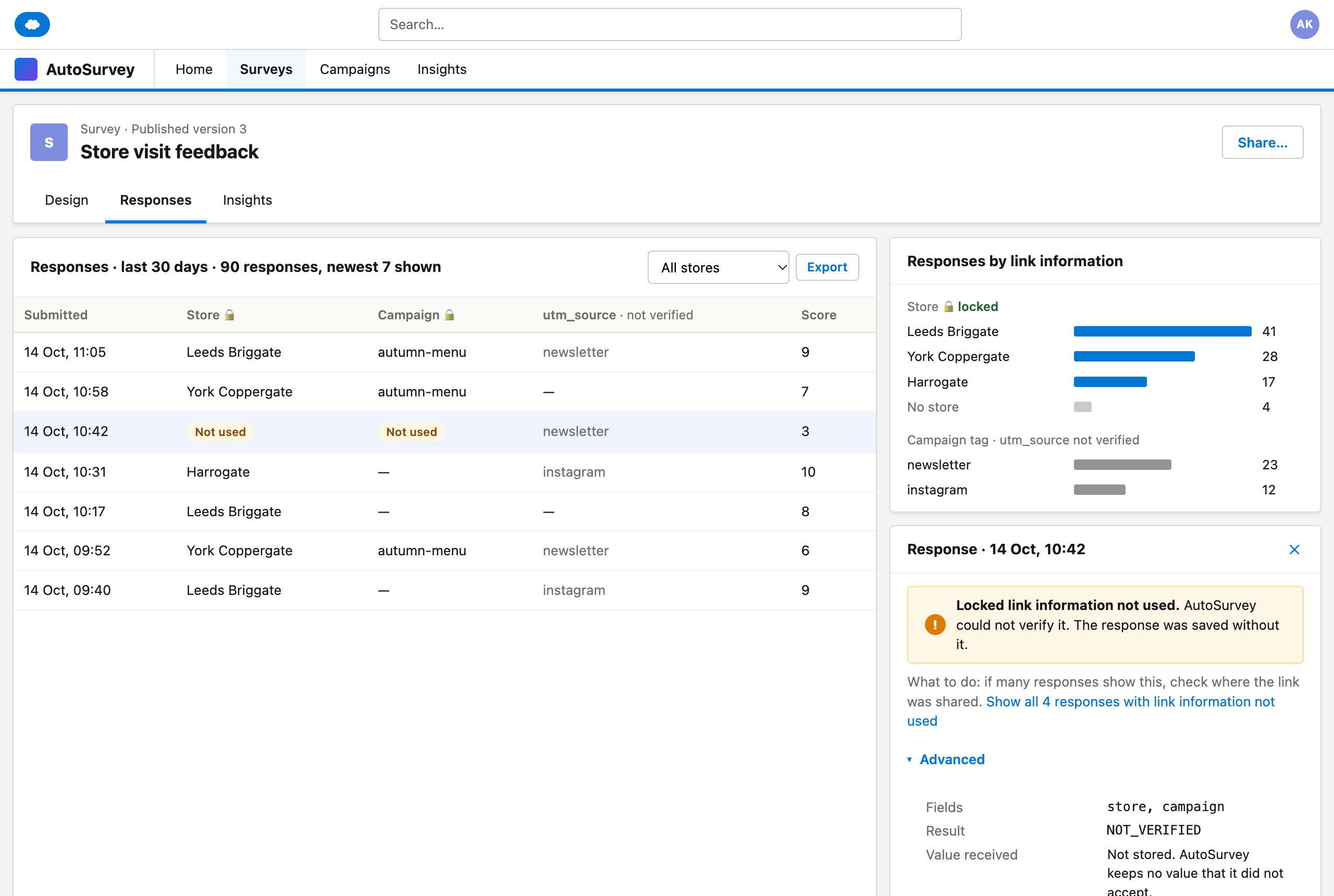
A value that is too long, or not on the allowed list, is not stored. The response shows "Link information not used" and a plain reason. AutoSurvey never shortens a value to make it fit.
The screens
These are design mockups. Every store, person and number on them is fictional.
What it does, and what it does not do
What it does
- Adds Store, Campaign and Partner to a survey link from the share dialog, with a QR code.
- Locks every value that AutoSurvey adds. One code covers all locked values in a link.
- Records campaign tags such as
utm_sourceas they arrive, and marks them "not verified". - Shows each field as a column and a filter on responses and in reports.
- Saves the response when it refuses a value, and shows the reason.
- Blocks values that look like an email address, a phone number or a Salesforce record ID.
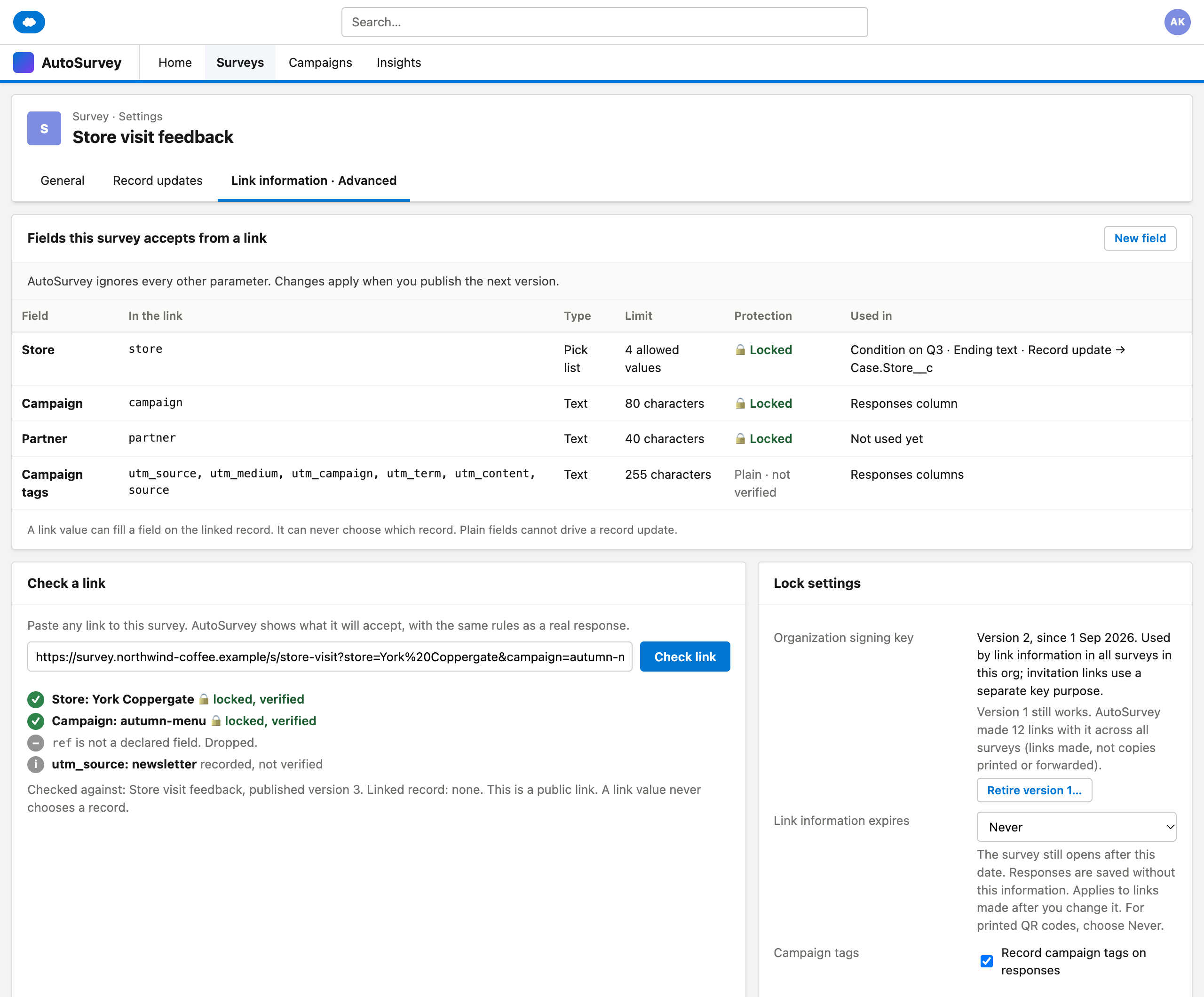
- In Advanced: field types, length limits, allowed values, a link check, key versions and an optional end date.
What it does not do
- Does not hide the value. Anyone who reads the link can see it.
- Does not prove where a respondent was. A shared link carries the same value for everyone who opens it.
- Does not let a link value choose which Case, Contact or Lead a response belongs to.
- Does not identify a person. To reach one person, use a personal invitation.
- Does not recognise every kind of personal data. The rule stays: no personal data in links.
- Does not make a batch of links for many stores at once. That is a separate feature pack.
What AutoSurvey does today
Some of the rules behind this pack already exist in the product code. A personal invitation finds the respondent's record on the server. A value in the link cannot change that record. Each response records its channel, for example public link, QR code or email list. The survey reads only a fixed set of link settings, such as language and channel, and ignores everything else. Today there is no general way to carry a store or campaign value in a link. This pack adds it.
Create a store link without editing a URL.
If you send one survey through many stores, campaigns or partners, tell us how you do it today. Your answer helps us decide what to build.
Every store and person on these mockups is fictional.