
One question editor · Survey builder
The outline, the preview and the settings on one screen.
Find a question in the outline. Change its words in the preview, where the respondent sees them. Change its settings in the panel on the right. There is no List view and no Preview view to switch between.
An admin turns it on in Setup Home with the "One question editor" card. It is for desktop screens.
Before, the Questions tab had two views. In List, you edited each question in a drawer. In Preview, you saw the themed survey. In our review, authors could not find how to add a screen. Moving a question was hard on a laptop. Each question used two lines.
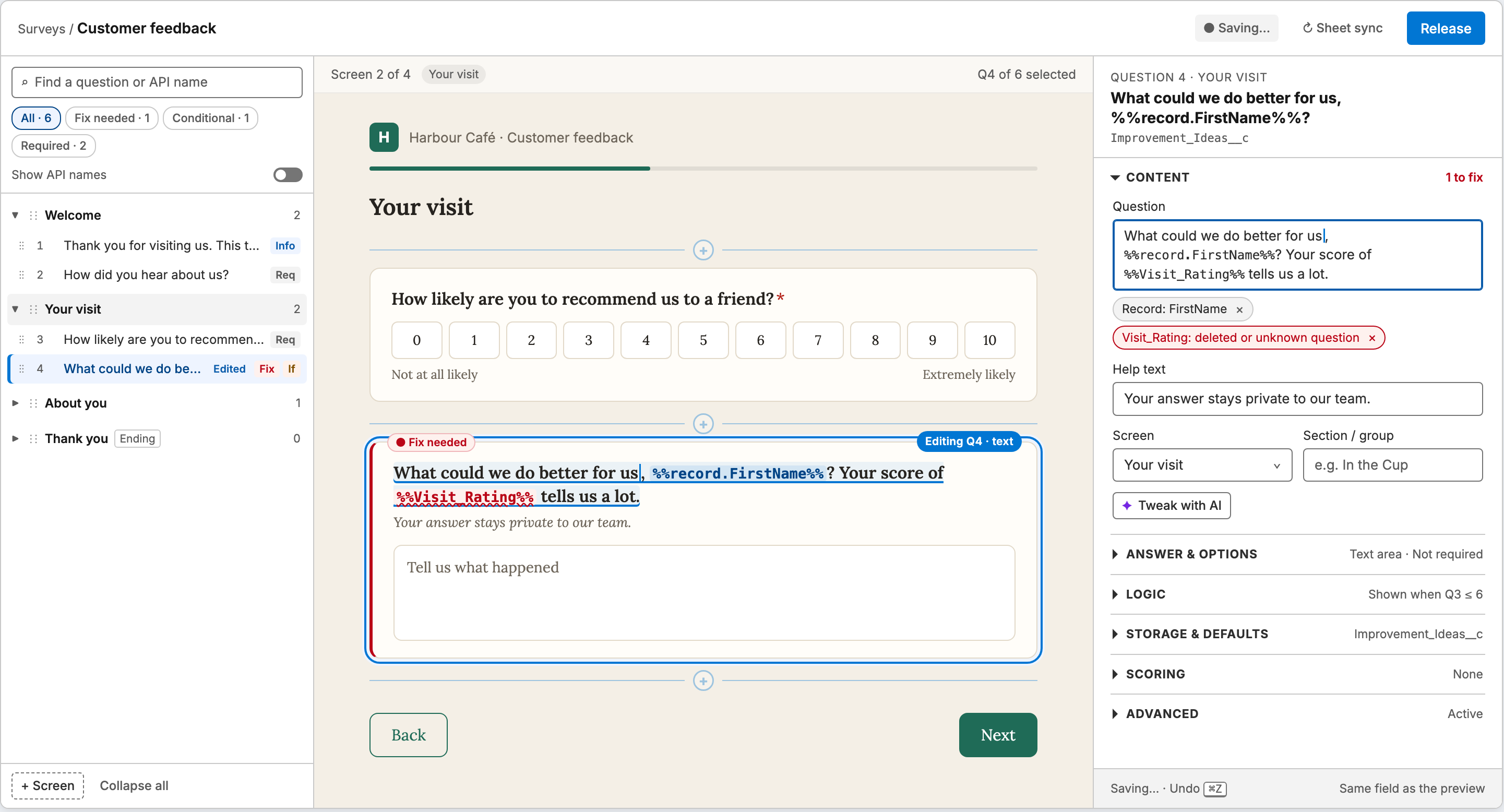
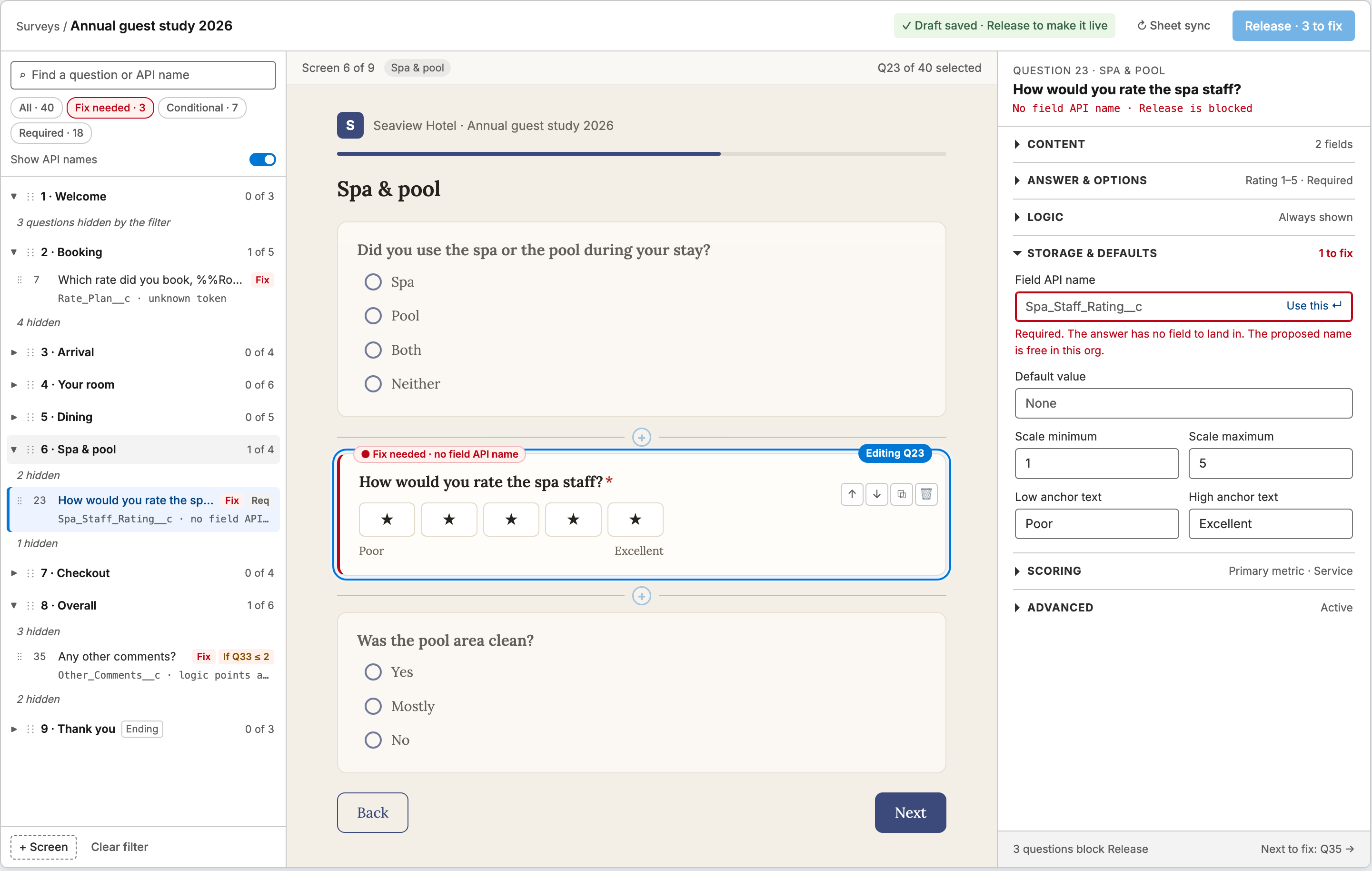
The one question editor puts three columns side by side: an outline of screens and questions, the themed preview of the current screen, and an edit panel. Your Google Sheet is still the draft, and autosave works as before.
Find a question quickly.
Search the outline with ⌘K. Filter with All, Fix needed, Conditional, Required and Edited. Show API names, or collapse the screens.
Edit the words where they show.
Change question text, help text, option labels, anchor text and the screen title in the preview. Click "Insert an answer from an earlier question" to show an earlier answer in the text.
Move and fix with fewer clicks.
Move up, Move down, "Move to…", Duplicate and Delete are on each row. Delete gives a 10-second Undo. ⌘Z undoes up to 50 steps.
The screens
These are design mockups. They use sample data for a fictional café and a fictional hotel.
What it does, and what it does not do
What the editor does
- Shows the outline, the themed preview of one screen and the edit panel together.
- Edits question text, help text, option labels and their order, anchor text, the "Other" label and the screen title in the preview.
- Keeps every setting in the panel: Content, Answer & options, Logic, Storage & defaults, Scoring and Advanced. "Change type" and "Tweak with AI" are in the panel.
- Moves a question to another screen with "Move to…", and checks that its logic rules still work after the move.
- Duplicates a question. You can share the option set with the original.
- Marks problems with "Fix". "Next to fix" takes you to the next one.
- Keeps the sheet tools together: "Open sheet", "Reload (saves first)", the last sync time and "Validate".
- Shows "View only" to a user who can only read the survey.
What it does not do
- It does not run logic in the preview. The answer controls in the preview do nothing when you click them.
- It does not edit every question type in the preview. Matrix, Ranking, File upload, Signature, Consent, Display text and Image show "Edit in the panel".
- It does not show two authors editing at the same time. A conflict opens a dialog. It never overwrites the other author's work without asking.
- It does not work on a phone or tablet. Below about 1000 px wide it shows "Limited editing space".
- It does not replace the Google Sheet. The sheet is still the draft.
- It does not select many questions at once.
Large surveys
We test the editor with up to 300 questions, 40 screens and 80 questions on one screen. Above that, it shows "This survey is larger than the editor is tested for."
Outline
The list of screens and questions on the left. Click a question to select it.
Preview
The current screen in your survey's theme. It looks like the respondent's screen, but it is not the live survey.
Token
A placeholder, for example %%Visit_Rating%%, that shows an earlier answer or a record field in the question text.
Do your authors switch between views to edit one question?
Bring one of your longer surveys. We will walk through the one question editor with you on that survey and answer your questions.
All data on these mockups is sample data for a fictional café and a fictional hotel.