
Save to Salesforce v2 · Feature pack
Answers go to the right record, not to a new duplicate.
AutoSurvey looks for the person first. It creates a record only when it finds none. It adds a child record for each repeated row, and it saves all of it together, or none of it.
This builds on Response to record and Intake to Record. It puts the three choices in one setting.
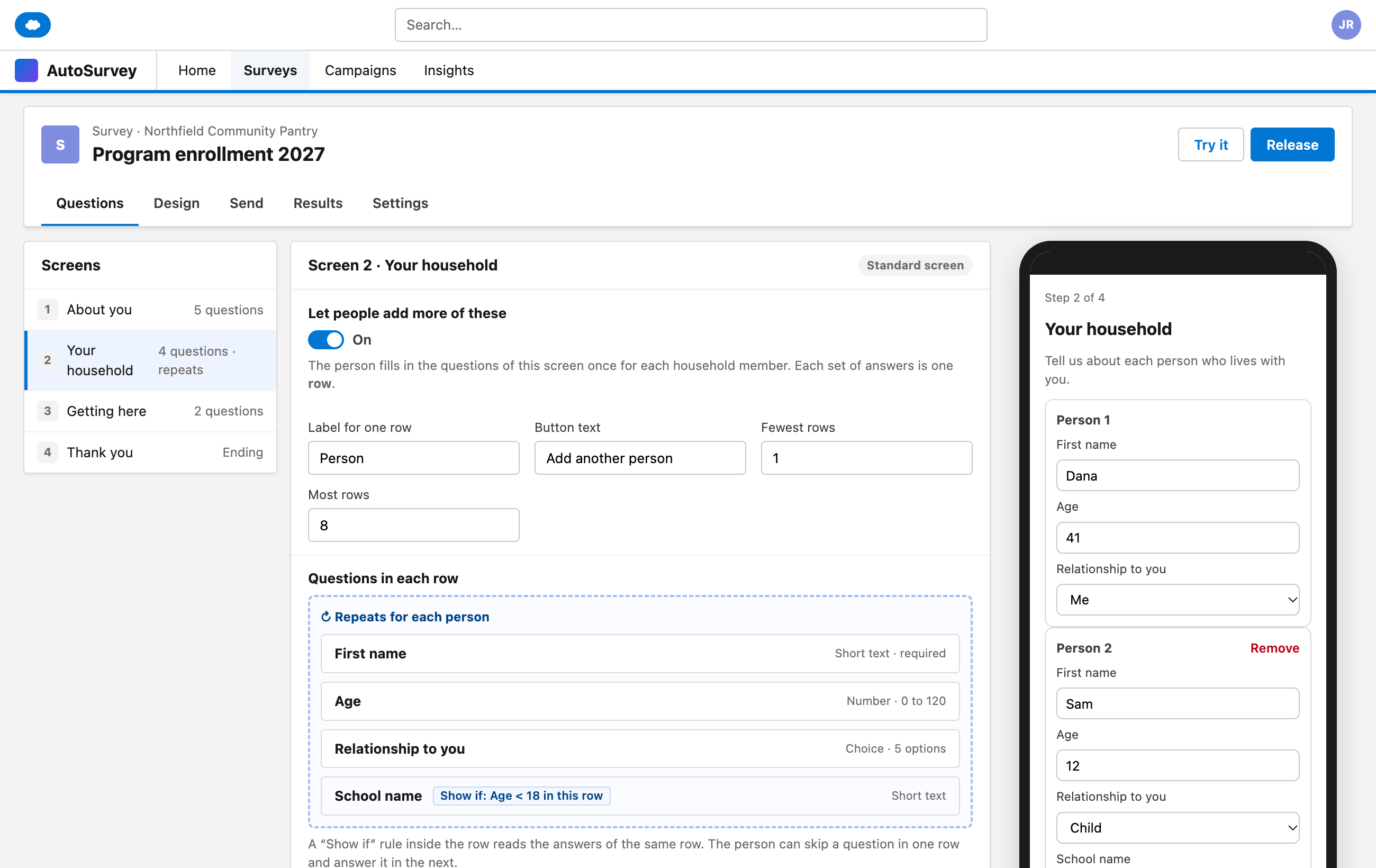
Many form tools can write to Salesforce. But a response can make a new Contact when one already exists, the setup can be a project of its own, and a family of five goes into one text box. This pack adds one question to the survey settings: Where should the answers go? Choose the record the survey is about, a new record, or find a record, or create one. A switch on a screen, Let people add more of these, saves each repeated row as a child record. Steps, match keys and conditions sit behind Advanced.
It finds before it creates.
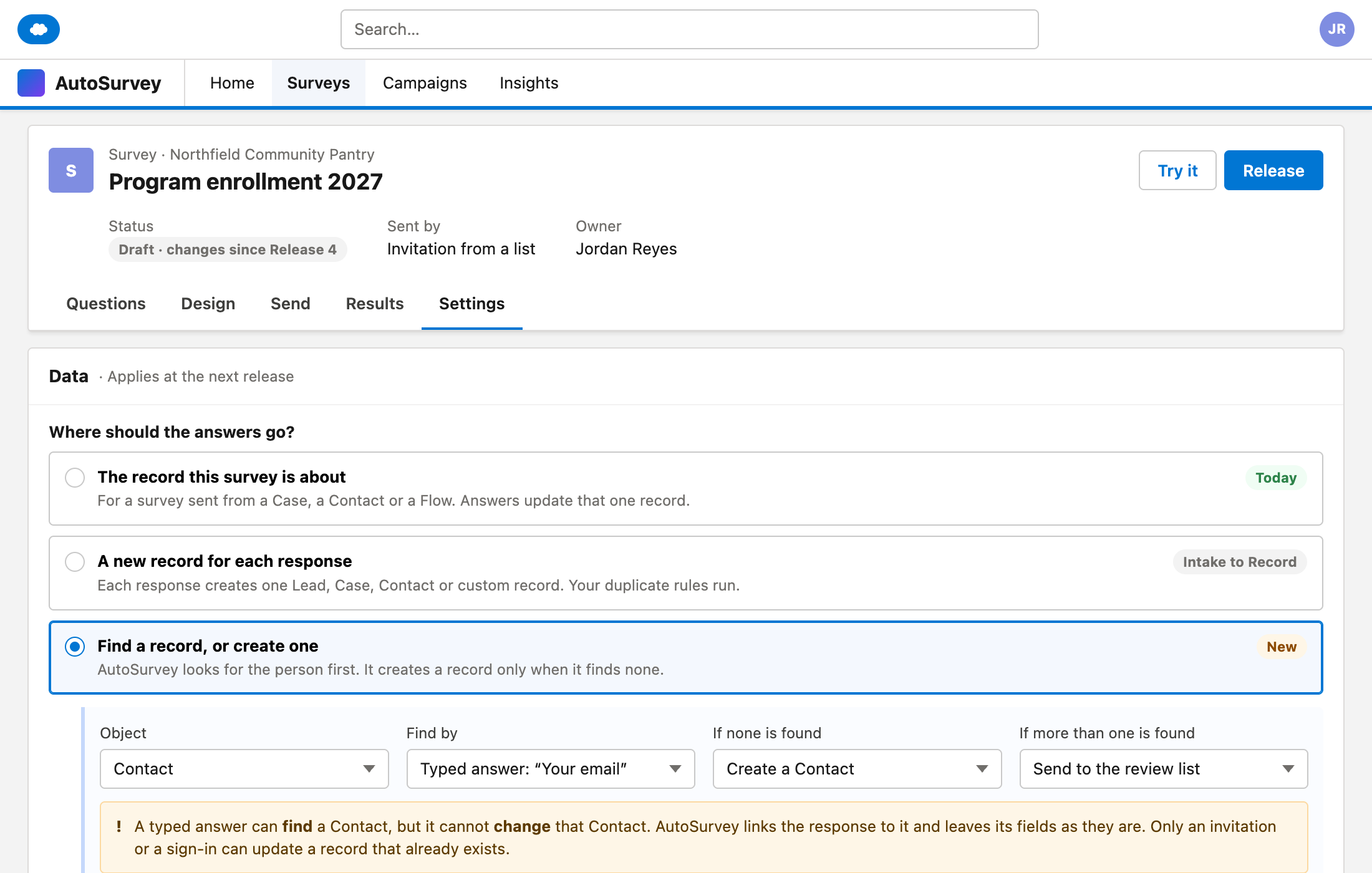
Pick the object and the match key, for example a Contact by the email that the invitation went to. A blank answer never matches a blank field. Your duplicate rules run on every new record.
One response, many records.
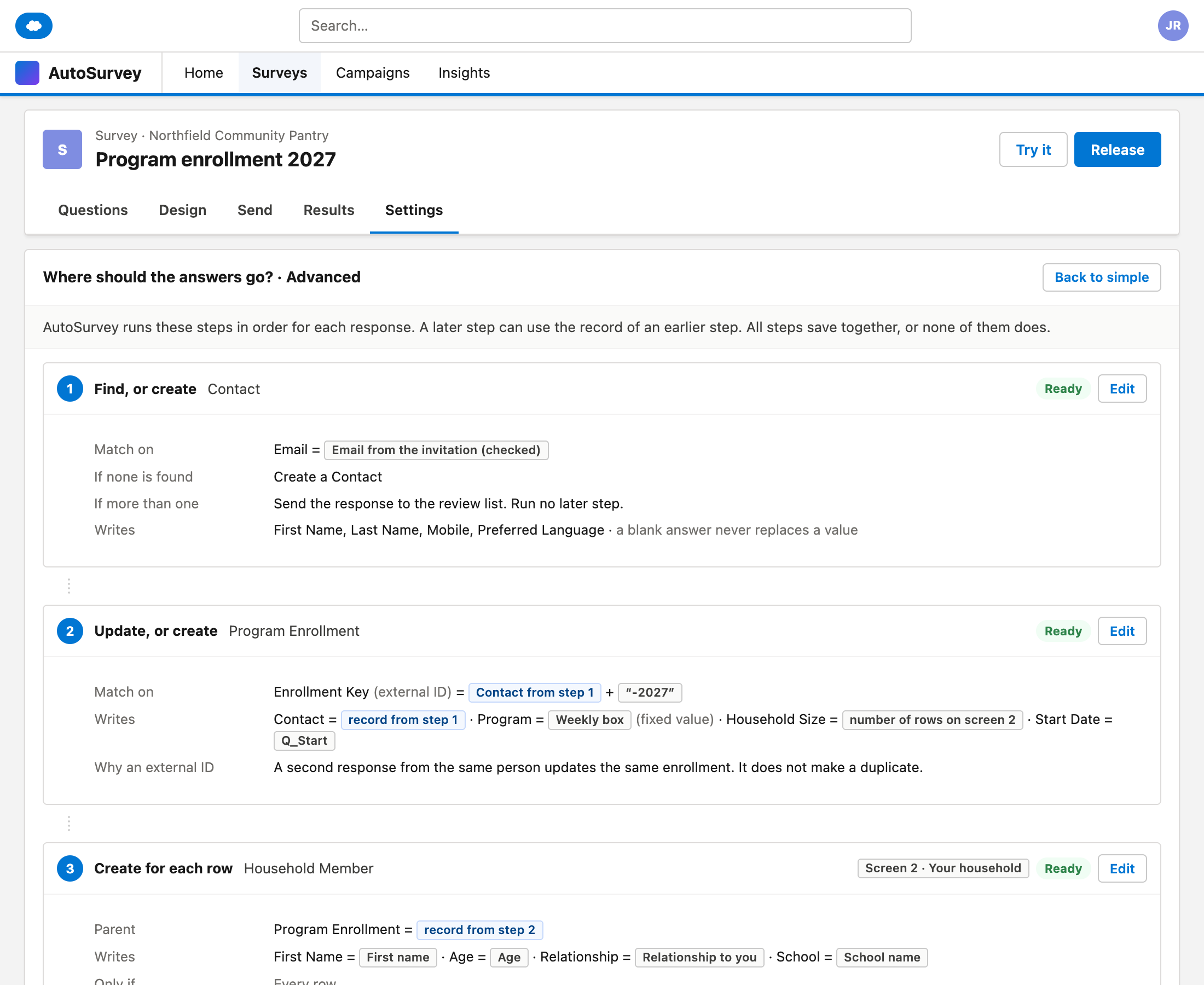
Save the Contact, an enrollment under it, and one household member for each row the person added. A later step can use the record of an earlier step.
All or nothing, and never a guess.
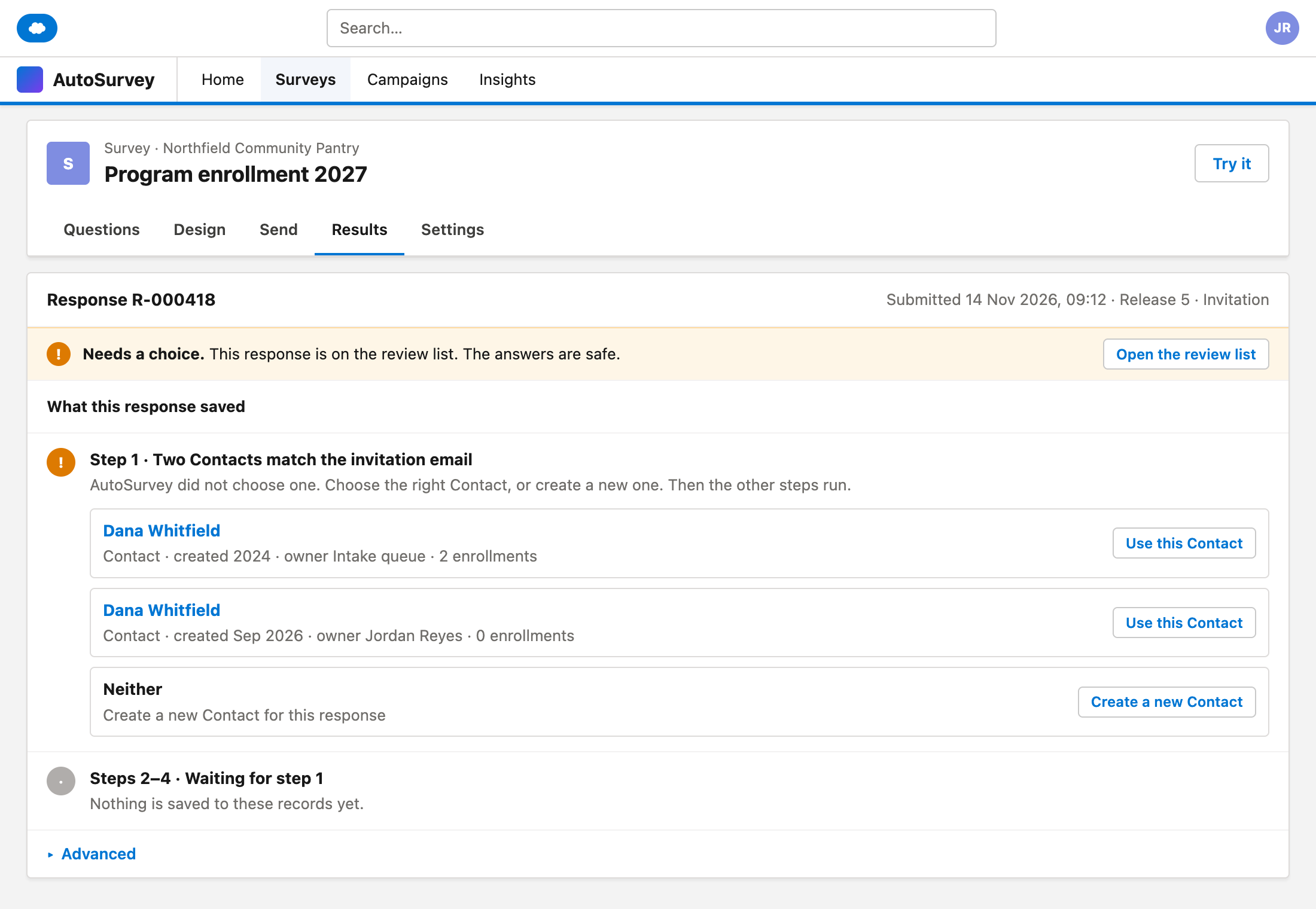
If one step fails, AutoSurvey undoes the others. The response is always kept. If two records match, a person chooses on the review list.
The screens
These are design mockups. They use sample data for Northfield Community Pantry, a fictional food bank. Every person on them is fictional.
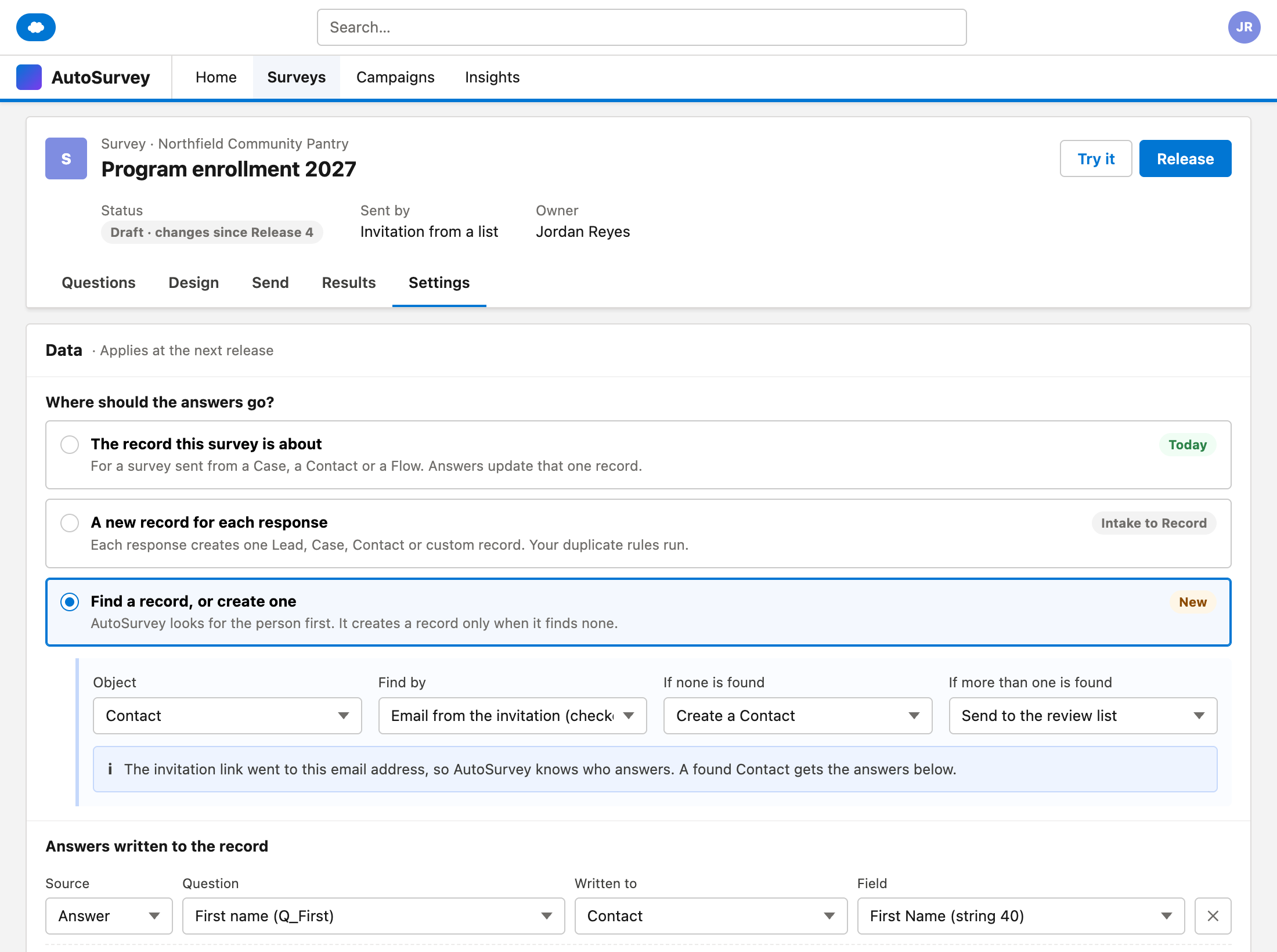
What it does, and what it does not do
What the pack does
- Finds a Contact, Lead or Person Account first, and creates one only when none is found.
- Runs steps in order: Find, Create, Update, Update or create, and Create for each row.
- Saves each repeated row as a child record. A "Show if" rule in a row reads the same row.
- Runs a step "only if" a rule is true, in the same language as "Show if".
- Saves all steps of a response together, or none of them. The response itself is always kept.
- Shows each step on the response page, with the record link, the reason for a failure and a "Try again" button.
What it does not do
- Does not let a typed answer change a record that exists.
- Does not pick one record at random when two match.
- Does not override a duplicate rule that is set to block.
- Does not replace a value on a record with a blank answer.
- Does not create records from public links at first. A public link saves the response only, until the spam guard is ready.
What AutoSurvey does today
Each response is stored as records in your own Salesforce org. On the Settings tab, an admin maps answers and scores to fields on the record that the survey is about, for example the Case or the Contact that the invitation came from. The record always comes from the invitation, the record page or the Flow, never from an answer. If a write fails, the response is kept and the reason is recorded. Intake to Record creates one new record for each response. Today AutoSurvey cannot find a record first, run several steps, or save child records. This pack adds them.
Record
One row in a Salesforce table. A Contact is a record.
Child record
A record that belongs to another record, for example a household member under an enrollment.
Match key
The field that AutoSurvey compares to find a record, for example Email.
Do you merge duplicate Contacts every month?
Tell us which records your survey answers must reach, and what you match on today. Your answer helps us decide what to build.
All data on these mockups is sample data for a fictional food bank.